Guides
Create and manage bots
Create bots through their owning Telegram accounts and manage bot profiles, photos, commands, and tokens.
Create and manage bots belonging to individual Telegram accounts. Each account interacts with @BotFather in its own chat. The app does not use one shared account to own bots for the whole team.
Who can do this
Owner, Manager, and Support can create bots, edit profiles, and change photos according to their account permissions. Owner and Manager can add existing bots, retrieve or rotate tokens, view tokens, and delete bots. Viewer can only read the list.
Before you start
The owning account must be signed in. Its machine must be online for steps involving BotFather. Prepare a display name and an available bot username.
Where to start
Open Bots in the left menu.
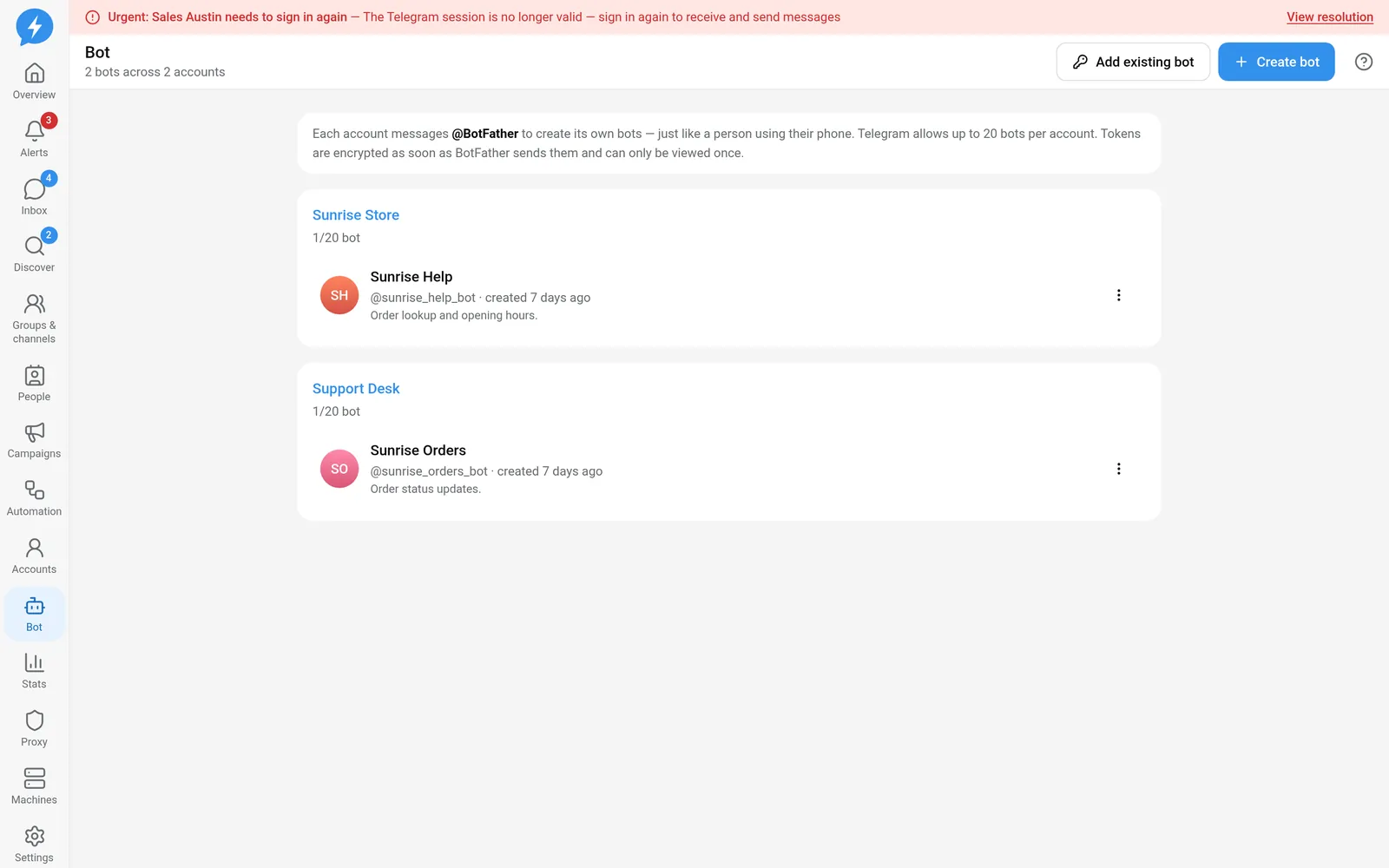
Steps
Create a bot or add an existing one
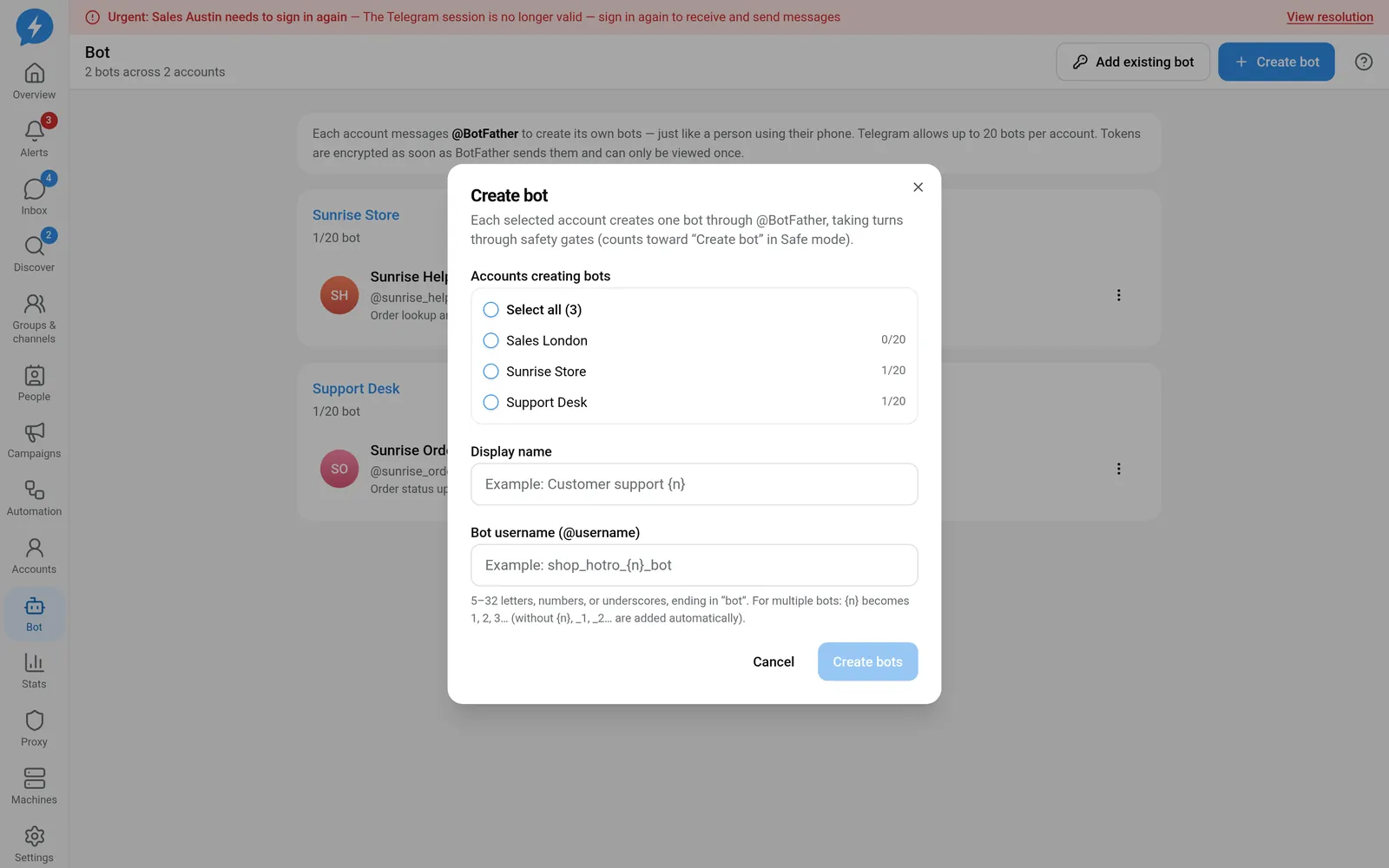
- Click Create bot.
- Select one or more Accounts creating bots.
- Enter a Display name.
- Enter a Bot username (@username).
- Check the list of names that will be created.
- Confirm creation.
When you select multiple accounts, each account creates one bot. Use {n} in the name template to distinguish them. If it is missing, the app adds a suffix. Names must still be valid and available on Telegram.
Follow each account's result separately. One account failing does not mean no bots were created. If a bot was created but its token was not saved, use Retrieve token. Do not create another bot just to fix token storage.
To add a previously created bot:
- Select Add existing bot.
- Select Bot owner account.
- Enter the Bot username.
- Click Add.
The app asks BotFather for the token through the owning account. This is not a field for pasting an arbitrary token.
Edit profiles and store tokens
- Open the bot's Actions for menu.
- Select Edit name, description, commands.
- Edit the name, short introduction, chat-opening description, or command menu.
- Click Save.
- Use Change photo when you need to replace the bot's photo.
The app's Bot API functionality is limited to profiles, commands, and photos. This feature has no Bot API mechanism for sending messages, receiving updates, or running a bot inbox.
- Select View token (once) when you have a safe place to store it.
- Select View once.
- Store the token, then select Stored safely.
- Confirm rotation only after preparing to update every place that uses it.
- Enter the exact username as requested, then confirm deletion.
Result
The bot belongs to the selected account, and its profile is updated on Telegram. The token is stored securely and revealed only once through the token-viewing flow.
Check
Verify the owner, username, and result for each bot. Any documentation image containing a token must cover it with a solid block.
If something goes wrong
Read the BotFather result and Logs. For a bot already created, prioritize retrieving the token instead of creating duplicates.
Do it with the API or MCP
Use bots.create, bots.adopt, bots.update_profile, and bots.revoke_token.
Tool names: bots_create, bots_adopt, bots_update_profile, bots_revoke_token. Viewing a token is a web-only action for people, not a public tool.