Guides
Create and use saved replies
Save shared content and insert it into conversations with shortcuts.
Save frequently used replies as templates so you can reply quickly while still checking the content before sending. Saved replies are shared across the workspace and are not sent automatically.
Who can do this
Owner and Manager can add, edit, and delete saved replies. Anyone allowed to reply in Inbox, including Support on permitted accounts, can insert saved replies while composing.
Before you start
Prepare content written by your team and an easy-to-remember shortcut. Do not put API keys, passwords, or secrets in shared replies.
Shortcuts can contain only letters, numbers, -, and _, with no spaces, and must not duplicate another shortcut.
Where to start
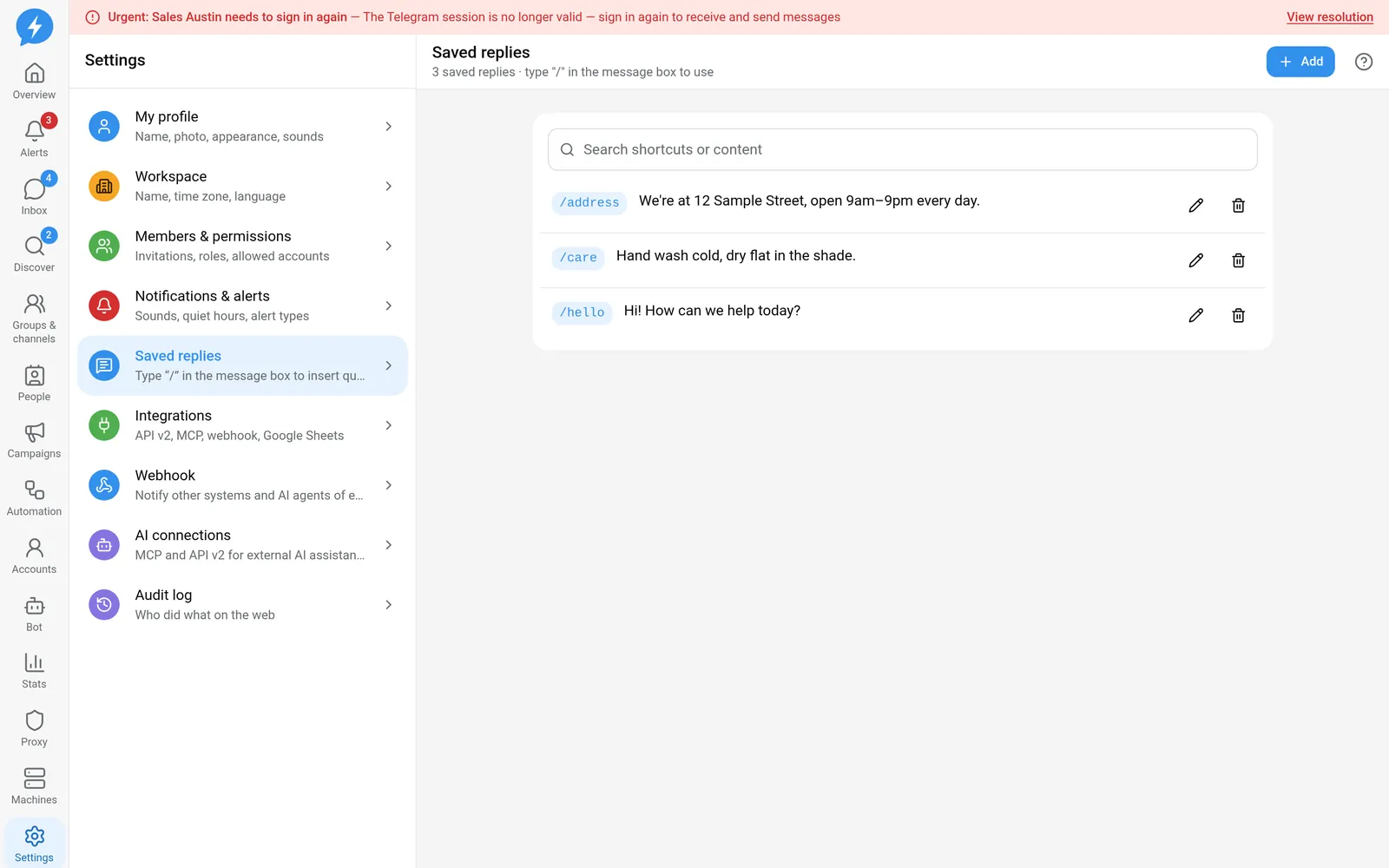
Open Settings → Saved replies.
Steps
Click Add. If the list is empty, use Add your first saved reply.
Fill in Shortcut. For example,
chao; to use it in Inbox, type/chao.Fill in Content. For example:
Hi {ten}, I'm helping you from {tai_khoan}. What would you like to know about?Insert variables if needed.
Variable Inserted value {ten}The person's name in the conversation {tai_khoan}The name of the account replying Saved replies do not process campaign spintax; use the exact variable names in the table above.
Click Save. If you see This shortcut already exists, choose another shortcut or edit the existing reply.
Open the conversation you want to reply to in Inbox. Check the recipient and account.
Type
/in the composer and select a reply from the suggestions. Keep typing the shortcut to filter the list.Read the inserted content. Check the person's name, account name, and business information; edit it directly in the composer if needed.
Click Send. Inserting a saved reply only composes the message; check the sending result just as you would for a message you typed yourself.
Result
Your team has a consistent library of replies. Each time you insert one, its content is filled in for the open conversation.
Check
Use Search shortcuts or content to find the reply you just created, then try inserting it into an appropriate conversation. Editing a saved reply does not change messages already sent.
If something goes wrong
No add or edit button: check your role. No replies appear when you type /: check the shortcut and the workspace you have open.
Do it with the API or MCP
Use templates.list, templates.save, and templates.delete — MCP templates_list, templates_save, templates_delete.