Concepts
Which groups and channels appear in Inbox?
Understand the three follow modes and the rules for automatically adding groups or channels to Inbox.
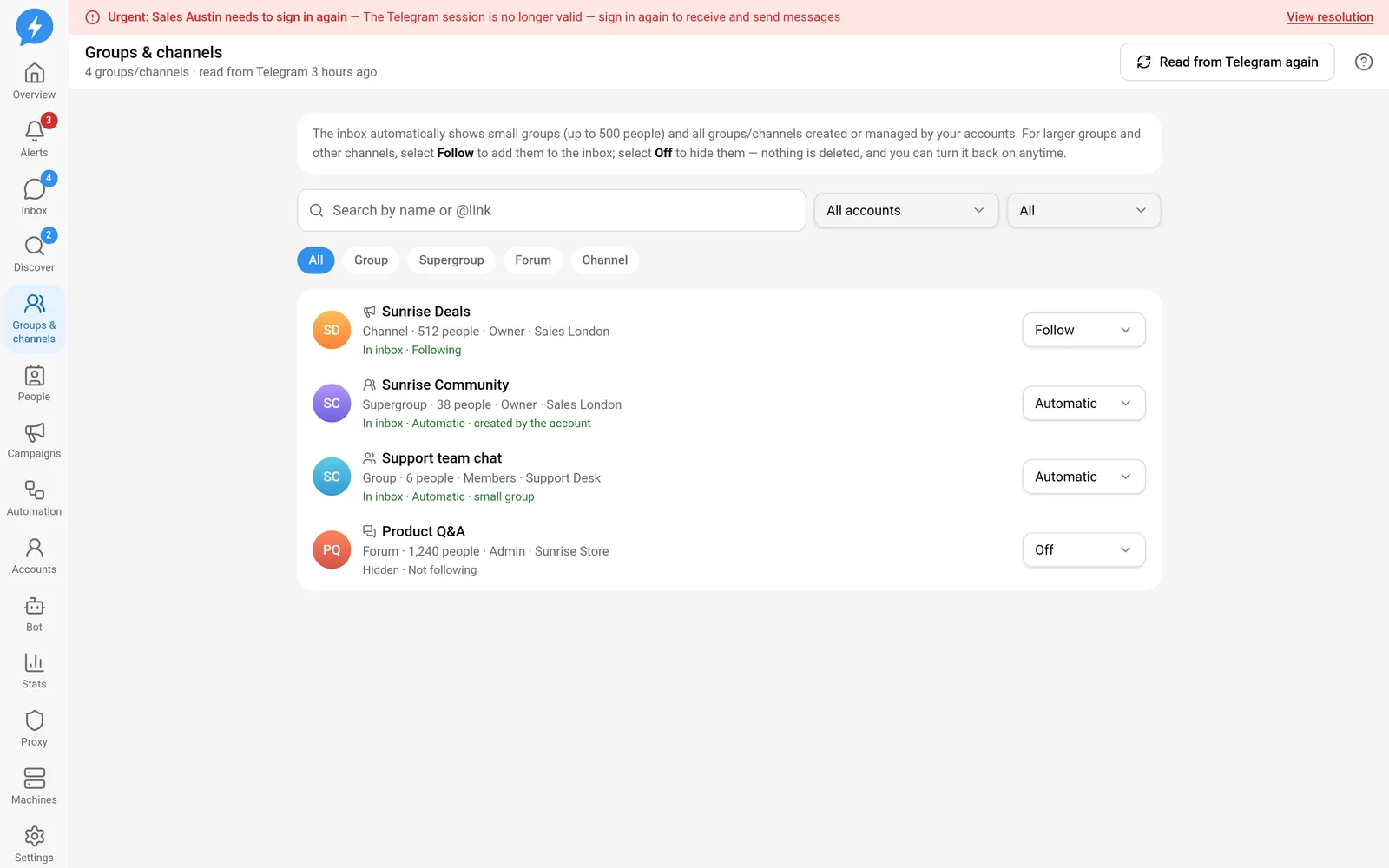
Not every group or channel on an account automatically appears in Inbox. You manage this in Groups & channels, using each chat's follow mode.
The goal is to keep Inbox focused on conversations that need attention. Turning following off does not leave the group or delete the chat.
Three follow modes
| Value | Rule |
|---|---|
On (on) |
Always include in Inbox |
Off (off) |
Do not include in Inbox |
Automatic (auto) |
Use the chat type, role, and member count |
An explicit On or Off selection overrides the automatic rule. If you turn off a group managed by the account, the admin role does not automatically turn it back on.
The page shows reasons such as Following, Not following, Automatic · created by the account, or Automatic · account is an admin.
Automatic rules
The system checks the role first, then the type and size:
| Situation | Included in Inbox in Automatic mode? |
|---|---|
| The account created the chat | Yes |
| The account is an admin | Yes |
| Channel where the account is only a member | No |
| Basic group where the account is a member | Yes |
| Supergroup or forum with up to 500 members | Yes |
| Supergroup or forum with more than 500 members | No |
| Supergroup or forum with an unknown member count | No |
The small-group threshold is 500 members, including exactly 500. Basic groups are always included, even when the member count is unknown.
The role belongs to the account in the chat. If several of your accounts belong to the same chat, each account may have a different role.
Do channels always need Follow turned on?
No. Channels created or managed by the account are already included in Inbox automatically.
For a channel where the account is only a member, turn on Follow if you want it in Inbox. Likewise, a large group managed by the account is still included automatically; the rule is not “always hide anything over 500.”
When a group does not appear
- Check whether its Follow mode is Off.
- If it is Automatic, check the account's role.
- Check the chat type and known member count.
- If you still want to handle it in Inbox, turn on Follow for that chat.
Chats the account has left do not count. Turning on Follow does not rejoin a group.
The website, Inbox, REST/MCP, and machines all use this same rule, so it is interpreted consistently everywhere.