Guides
Import a list of people from a file
Import CSV or XLSX files, map columns, and track Telegram lookup results.
Import a list of usernames from CSV or XLSX to start a lookup batch with a result for each row. Accepting the file does not mean everyone in it has been added to People.
Who can do this
Owner and Manager.
Before you start
The file needs a username column containing @username values or t.me profile links. You can also include name, notes, and tags columns. This workflow does not look up people by phone number.
Each batch accepts up to 10,000 rows. At least one running Telegram account is required to look up profiles.
Where to start
Open People → Imports, then select Import file. Import file is also available on the Board tab.
Steps
Select a file or drag it into the import dialog. The app reads the file before asking you to confirm. Split files that exceed the row limit.
Map the username column. Check the column the app detected, rather than relying only on the column name. You cannot continue without a username column.
Map additional columns. Select the name, notes, and tags columns if present. For unused columns, select — Do not use —.
Review Check. Distinguish rows to be looked up, invalid rows, and blank rows that will be skipped. Fix the original file if columns are misaligned or many usernames are invalid.
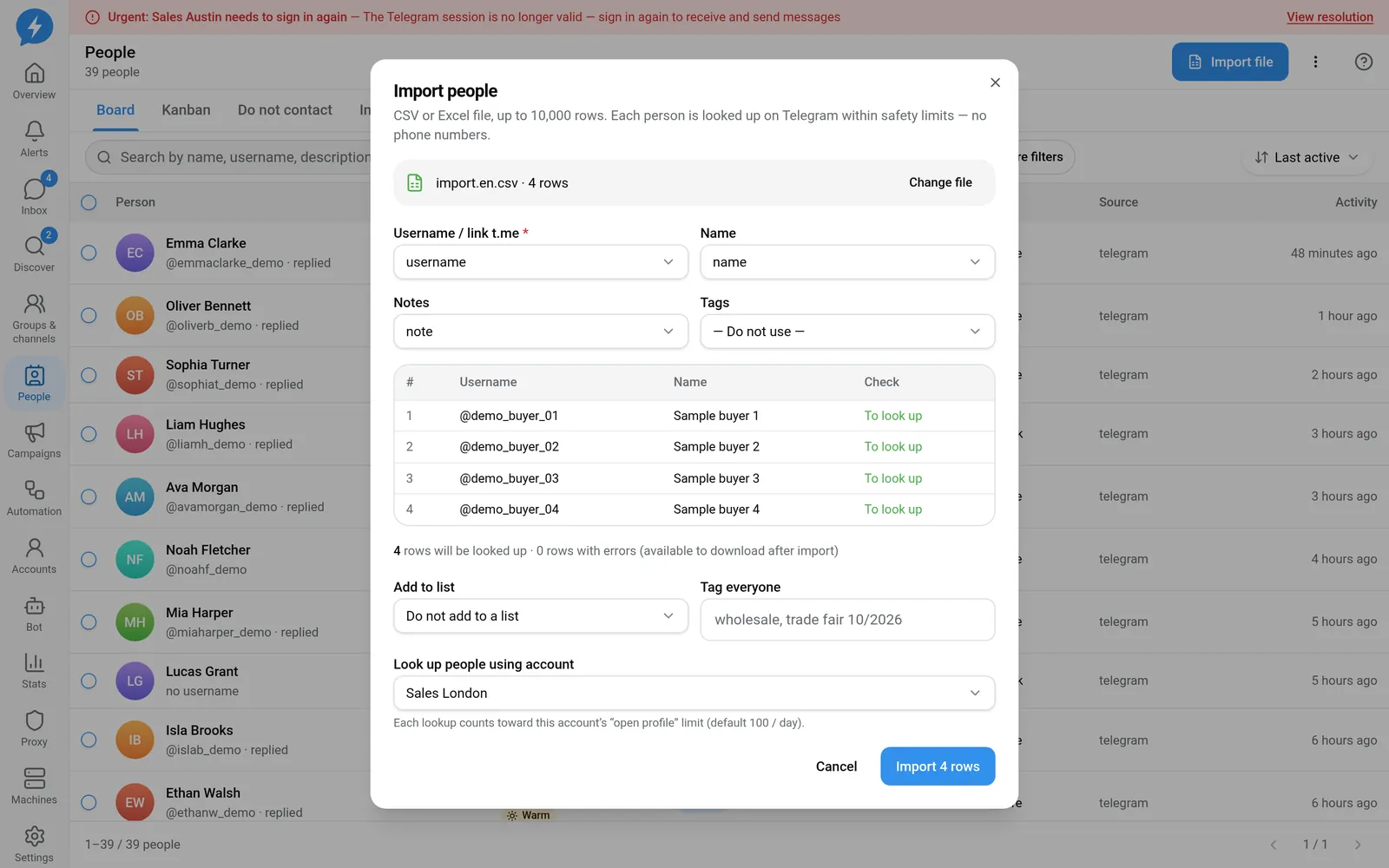
Check before importing Select a destination list. Under Add to list, choose an existing list, create one, or do not add to a list.
Set shared tags if needed. Tag everyone helps identify the import source. Tags do not replace do-not-contact requests.
Select a lookup account. Each lookup goes through that account's job queue and profile-opening limit, so the batch may take time.
Confirm the import. Read the counts of rows being looked up, already present, and excluded. Duplicate rows and existing people do not create new profiles; existing people still receive the batch's list membership and tags.
Track progress in Imports. Open the results to inspect each row. Use Download error file to fix failed rows instead of importing the whole file again.
Result
Each batch keeps its own progress and results: valid, already exists, not found, excluded, invalid, or error.
Check
Compare the checked row count with the total. Find a valid person in People and check the list and tags you selected. A row waiting for lookup is not an error.
If something goes wrong
Check the file format, username column, and lookup account status. Excluded people are not data that needs importing again.
Stop prevents further processing of the batch; it does not undo profiles already processed.
Do it with the API or MCP
Use imports.start and imports.cancel — MCP imports_start, imports_cancel.