Guides
Profile and workspace settings
Distinguish personal settings from shared workspace settings and adjust notifications at the right scope.
You can change your personal profile, workspace information and notification preferences. Check the scope before saving: some options apply only to you, while others affect the whole team.
Who can do this
Each member can edit their own profile and personal preferences. Owner and Manager can edit workspace information, change shared alert types and read the audit log.
Before you start
Decide whether you want to change your personal display name or the workspace name. If you change the time zone, agree on it with your team first because metrics and displayed times use this time zone.
Where to start
Open Settings in the left menu.
Steps
My profile
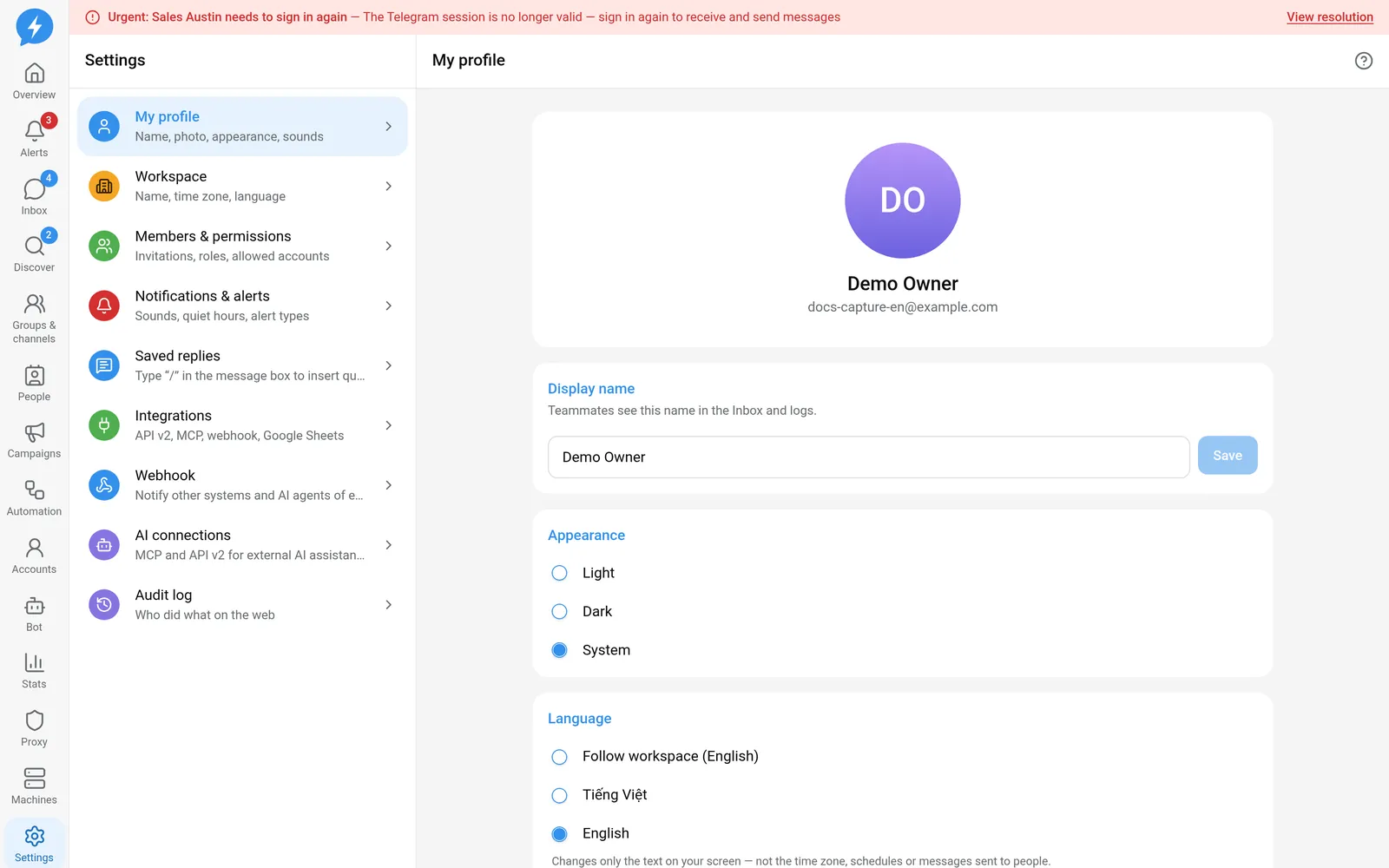
- Open My profile.
- Edit Display name.
- Click Save.
- Choose an Appearance option: Light, Dark or System.
- Choose the interface language using the app's language selector.
- Adjust Sound for new messages if needed.
Teammates see your display name in the Inbox and logs. This does not change the Telegram profile names of the accounts you operate.
Changing the language only changes the interface language. It does not change the time zone, schedules or messages sent to customers.
Workspace
- Open Workspace.
- Edit Workspace name if needed.
- Choose Time zone.
- Choose Default language.
- Click Save changes.
The default language applies to members who have not chosen their own language, invitations and shared reports. It does not override personal choices or translate messages sent to customers.
The time zone is a separate setting. When checking statistics or quiet hours, check the time zone rather than inferring it from whether the interface is in Vietnamese or English.
Notifications & alerts
- Open Notifications & alerts.
- Under My settings, choose an Alert sounds level.
- Set Quiet hours.
- Click Save.
These preferences apply to you on devices where the app is open. Quiet hours use workspace time; Urgent alerts still play a sound. In-app notifications are always on.
- Under Workspace alert types, adjust the types you want to enable or disable.
- Adjust thresholds for types that support them.
- Save the shared changes.
Result
Your profile and personal preferences apply to you. Workspace information and shared alert rules apply to the whole team according to each field's scope.
Check
Reopen the section you edited to check its values. After changing the time zone, compare the times in Stats and quiet hours.
Open Audit log to see who performed recorded actions on the web. This is separate from the Telegram action log.
If something goes wrong
If you cannot save shared information, check your role. If you cannot hear sounds, check your personal preferences and quiet hours before changing rules for the whole workspace.
Manage users in Members & permissions, not My profile.
Do it with the API or MCP
Use workspace.update, tool workspace_update, to edit workspace information; use alerts.save_rules, tool alerts_save_rules, to change alert rules.
Read the log with audit.list, tool audit_list. Personal sounds and quiet hours are not available as public operations.