Get started
Get started in 10 minutes
Create a workspace, connect a machine, add a proxy, and sign in to Telegram to reply to your first conversation.
You will connect the full chain: workspace → machine → proxy → Telegram account, then open the inbox to reply. “10 minutes” is a practical target when you have everything ready. It is not a guaranteed machine setup or sign-in time.
Who can do this
An Owner can complete the entire flow, including connecting Hetzner. A Manager can set up Windows machines, proxies, and accounts. If you use Hetzner, an Owner must connect it first.
Support can reply in the inbox for allowed accounts, but cannot set up infrastructure. A Viewer cannot read messages.
Before you start
- A personal Telegram account and a phone signed in to that account.
- Your two-factor authentication password, if enabled.
- A dedicated static proxy for the account, using SOCKS5 or HTTP.
- A Hetzner API token with Read & Write permissions, or a Windows machine you manage.
- An existing conversation to test a reply, with a recipient who has agreed to receive messages.
See the full list in Before you start.
Where to start
After signing in to the app, create a workspace if you do not have one. Then use Machines, Proxy, Accounts, and Inbox in the left menu.
Steps
Create a workspace using the Create workspace form. Enter the Workspace name, check the Time zone and Primary customer language, then submit the form.
Open Machines to choose where to run your accounts.
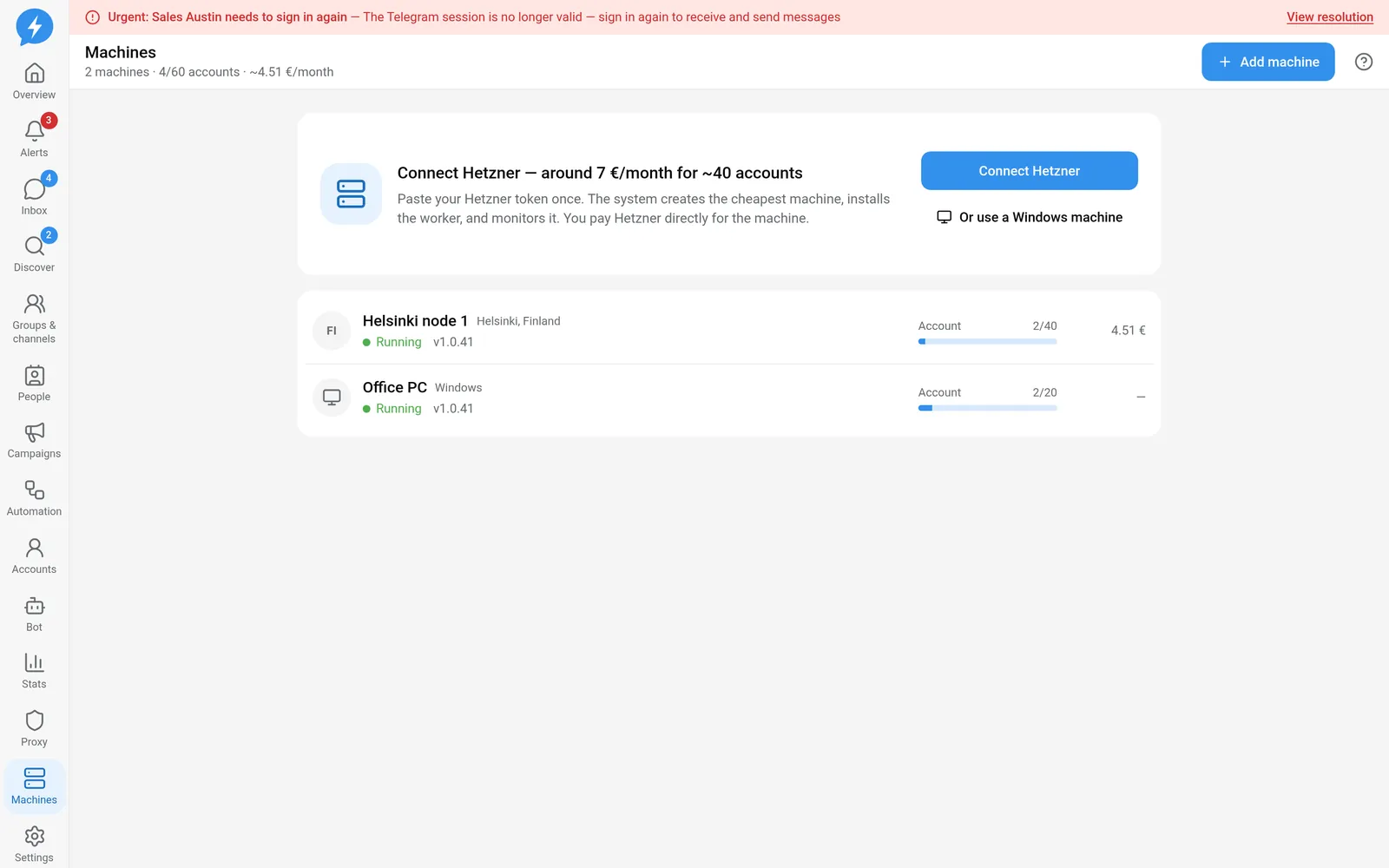
Choose where to run accounts Choose Hetzner if you want the app to create and manage machines in your project. Choose Windows if you already have your own machine.
Connect the machine using your chosen option. For Hetzner, the Owner uses Connect Hetzner, then launches a machine. For Windows, use Add machine and the My Windows machine tab, then follow the installation and pairing instructions. Wait until the machine shows Running before continuing.
Open Proxy and use Add proxy to save the account’s dedicated proxy. The system checks proxies from a workspace machine, not from your browser. See the proxy guide if no check result is available.
Open Accounts and select Add account.
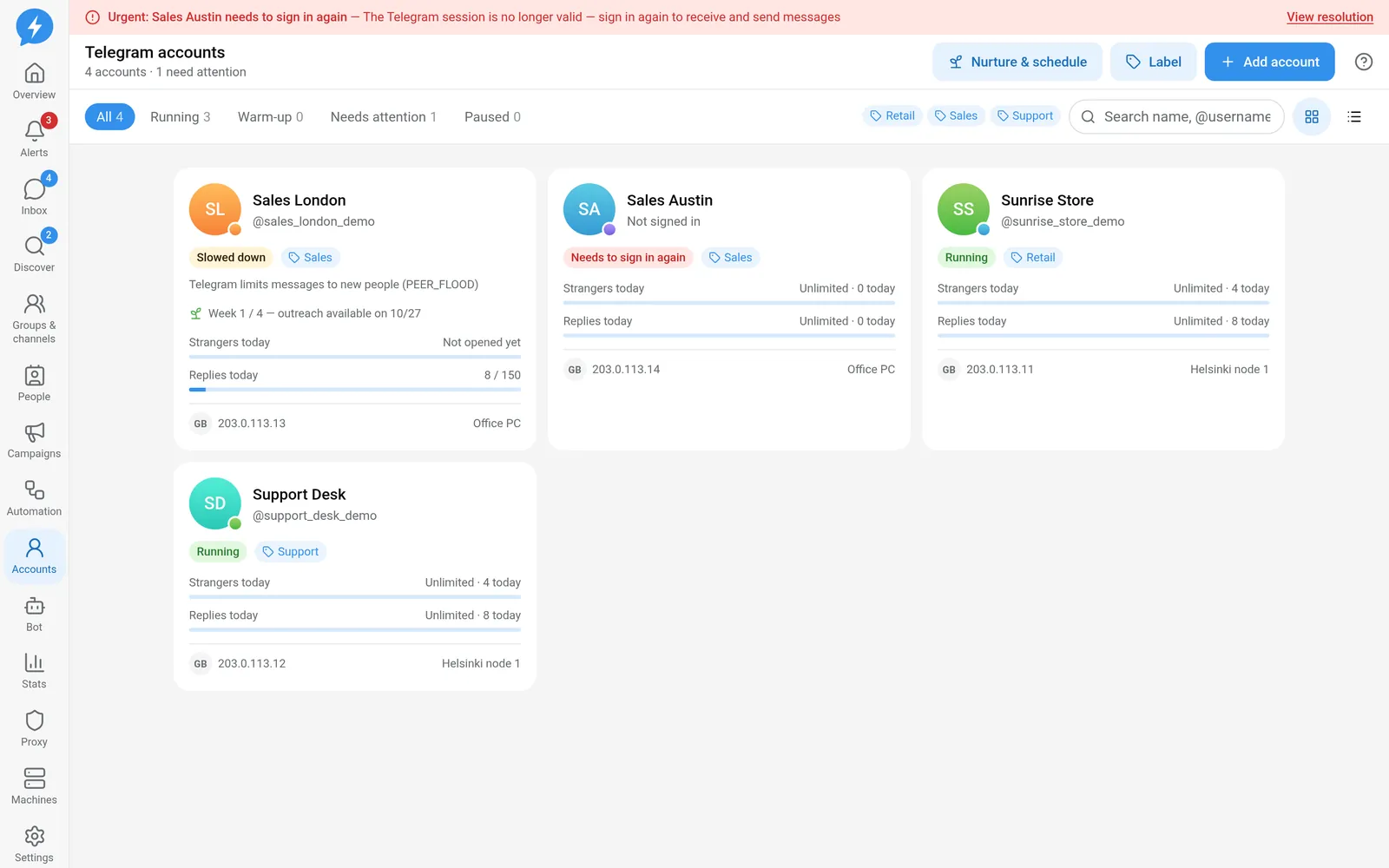
Add a personal account Select an available proxy and a running machine in the Add Telegram account dialog. Continue through the settings, review the details, then select Create & sign in.
Select Scan QR code to start signing in. On your phone, open Telegram and go to Settings → Devices → Link Desktop Device to scan the code. If prompted, enter your 2FA password. See Sign in with QR for each screen.
Open Inbox after sign-in is complete and conversations have synced.
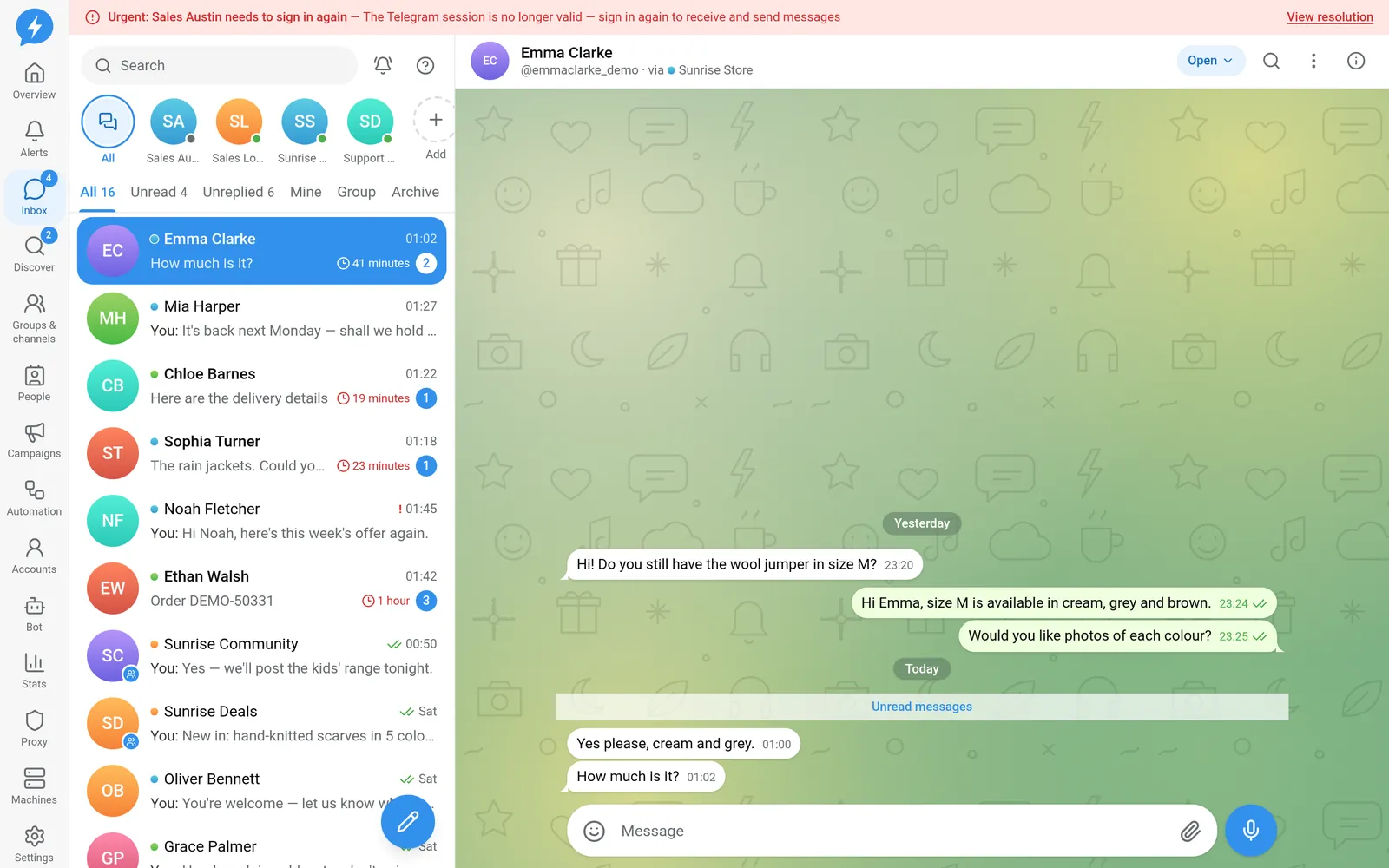
Open a synced conversation Select the conversation you want to reply to.
Write your message and click Send. Monitor the send result instead of clicking again immediately when you have not yet received a response.
Result
You have a personal Telegram account running on your machine through its own proxy. Your team can handle conversations in the shared inbox according to their permissions.
Check
- The machine is still connected.
- The proxy has been checked and is not identified as rotating its IP.
- The account is signed in.
- The conversation belongs to the correct account and recipient.
- The send has a confirmed result, not just an acknowledgement that a job was accepted.
If something goes wrong
Machine not connected: see Machine disconnected. Proxy error: see Troubleshoot proxies. QR sign-in does not complete: see Telegram sign-in errors.
If the send result is unverified, check before sending again.
Do it with the API or MCP
You create the workspace and make the initial Hetzner connection on the web. With an authorized connection, you can use:
- Create an account:
accounts_create. - Start signing in:
accounts_login_start. - Read conversations:
conversations_list. - Send a message:
messages_send.
Read Choose an interface before granting access to an external system.