Guides
Administer groups and channels
Manage members, permissions, invite links, topics, and group or channel settings using an account with the appropriate Telegram permissions.
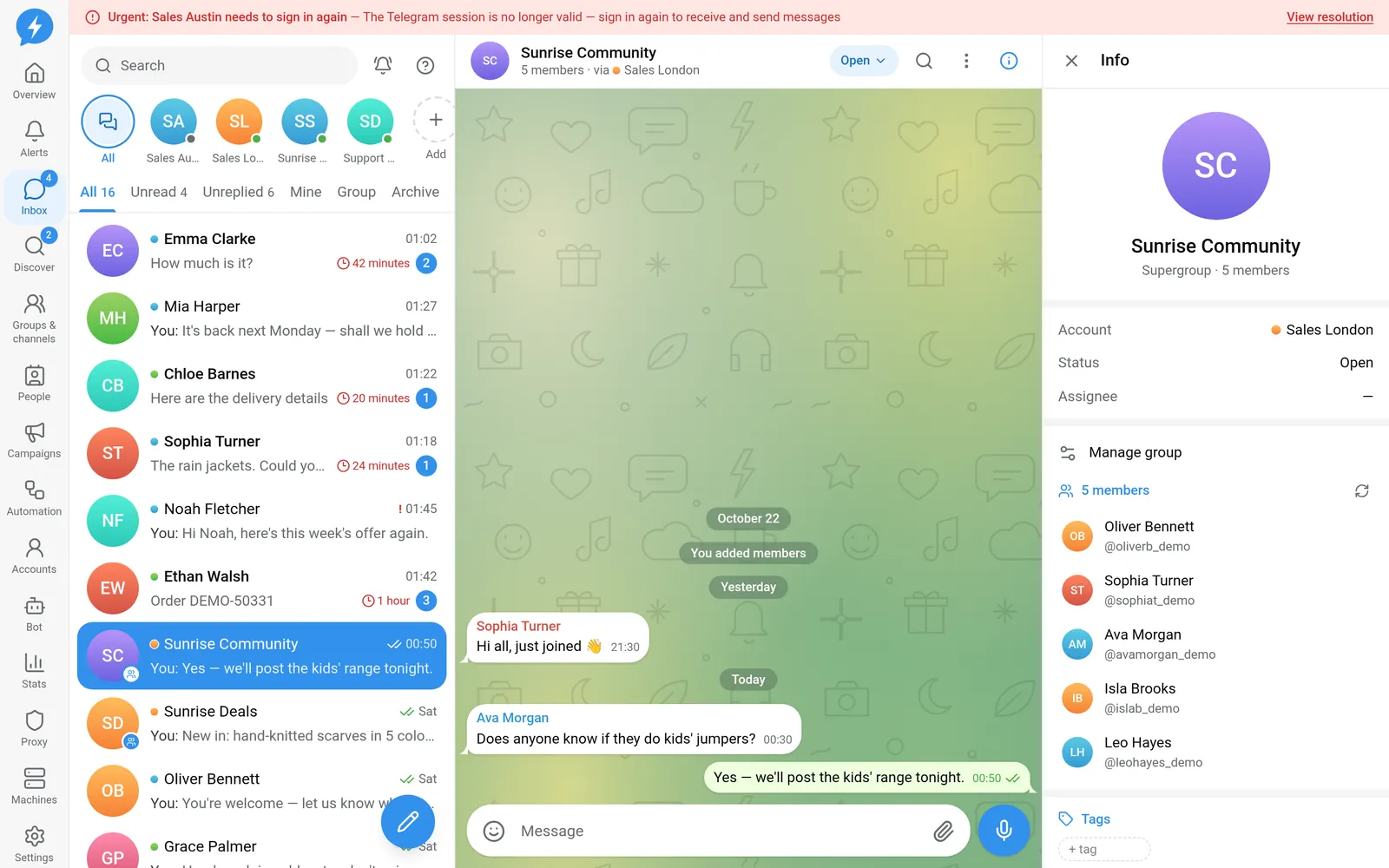
Administer a group or channel from the conversation's information pane. Workspace permissions do not replace the account's Telegram permissions.
Who can do this
Owner, Manager, and Support can use actions permitted for the account currently open. Deleting groups/channels and transferring ownership are restricted to Owner or Manager in the workspace, and the Telegram account must also have the corresponding permissions.
Before you start
Select the correct account and conversation. The machine must be online. For ownership transfer, prepare the Telegram account's two-step verification password.
Where to start
Open Inbox, select a group, open the information pane, then select Manage group or Manage channel.
Steps
Members and permissions
- Click Reload from Telegram to read the current information.
- Open Full member list → Open list.
- Select the list to view: recent members, admins, restricted members, banned members, bots, or join requests.
- Use Search members to search by name.
Available lists depend on the group type and Telegram permissions. People without the appropriate permissions cannot view all channel subscribers.
- Open the permissions menu for the person you want to manage.
- Select Restrict….
- Clear the actions that person must not be allowed to perform.
- Select For how long, then Save.
- Select Ban… when you need to remove the person.
- Select a duration before confirming.
- Select Make admin… or Edit admin permissions to change permissions.
- Fill in Title (optional) if needed.
An account can grant only permissions it has itself. Removing all admin permissions removes the admin role.
- Select Delete all only after checking that you have the right person.
Invite links, join requests, and settings
- Open Invite links.
- Select Edit link.
- Adjust the link name, approval requirement, expiry, or maximum number of people.
- Click Save.
- Use Approve or Decline on the join request you want to handle.
In settings, you can change Public link, New members can see earlier messages, Block forwarding and saving content, post signatures, author profiles, and joining rules. Options appear only when applicable to the group/channel.
Slow mode controls how frequently members can send. Auto-delete new messages applies an automatic deletion policy. Unpin all messages requires confirmation. For forums, use the topics section to pin or unpin topics.
Under Add bot, enter the bot's name and select the required permissions. Bots join channels as admins; check permissions before adding them.
Transfer ownership or delete
- Select Transfer ownership.
- Select the recipient.
- Enter the two-step verification password.
- Confirm that you understand, then select Transfer ownership.
The password is used once for this action and is not saved for reuse.
- Select the delete action in Danger zone.
- Type the group/channel name exactly.
- Select Delete permanently.
Result
Changes are made on Telegram, not just to the app's display.
Check
Reload the information and check permissions, links, or members after the action.
If something goes wrong
Check Telegram permissions, the group type, and machine status. Read the reason in Logs; do not repeat deletion when the result is unclear.
Do it with the API or MCP
Public operations include groups.members, groups.restrict_member, groups.set_admin_rights, and groups.edit_link.
Tool names: groups_members, groups_restrict_member, groups_set_admin_rights, groups_edit_link. Ownership transfer is available only on the web, not to AI connections.