Integrations
Connect an external AI assistant
Grant limited access to an external assistant through MCP or REST v2 and track the connection's commands.
You connect an external AI assistant to Telegram-Auto and limit what it can do. Telegram-Auto has no built-in AI. Every assistant command passes through the same safety gate as actions on the web.
Who can do this
An Owner or Manager can create and manage connections. A connection's effective permissions are the intersection of its role, job categories and granted accounts. A connection cannot have more access than its creator.
Before you start
- An assistant that supports MCP, or a program that calls REST.
- A list of accounts and tasks the assistant may handle.
- A secret store if you use an API key.
Keep reporting-only connections separate from connections with permission to send messages.
Where to start
Open Settings → AI connections.
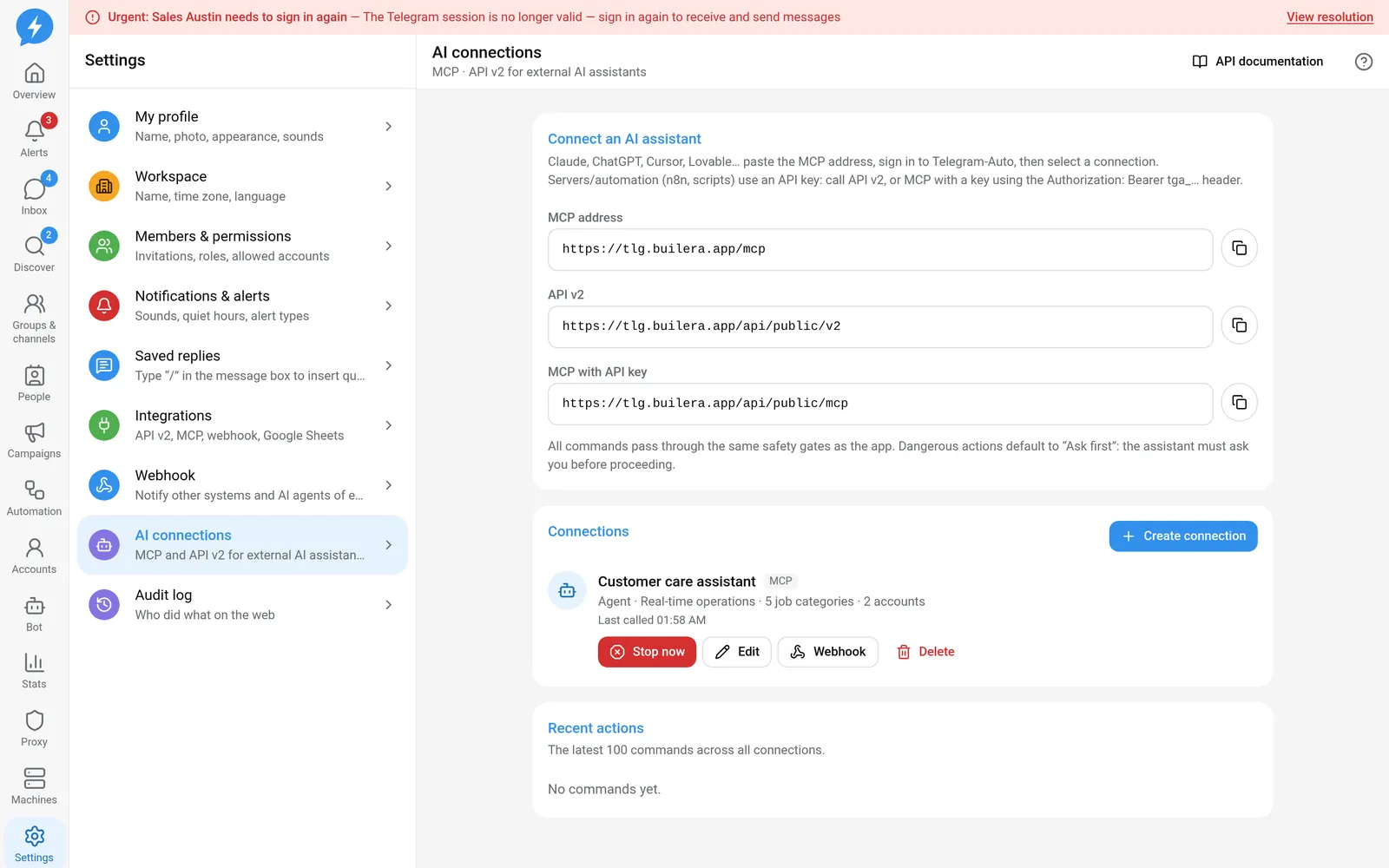
Steps
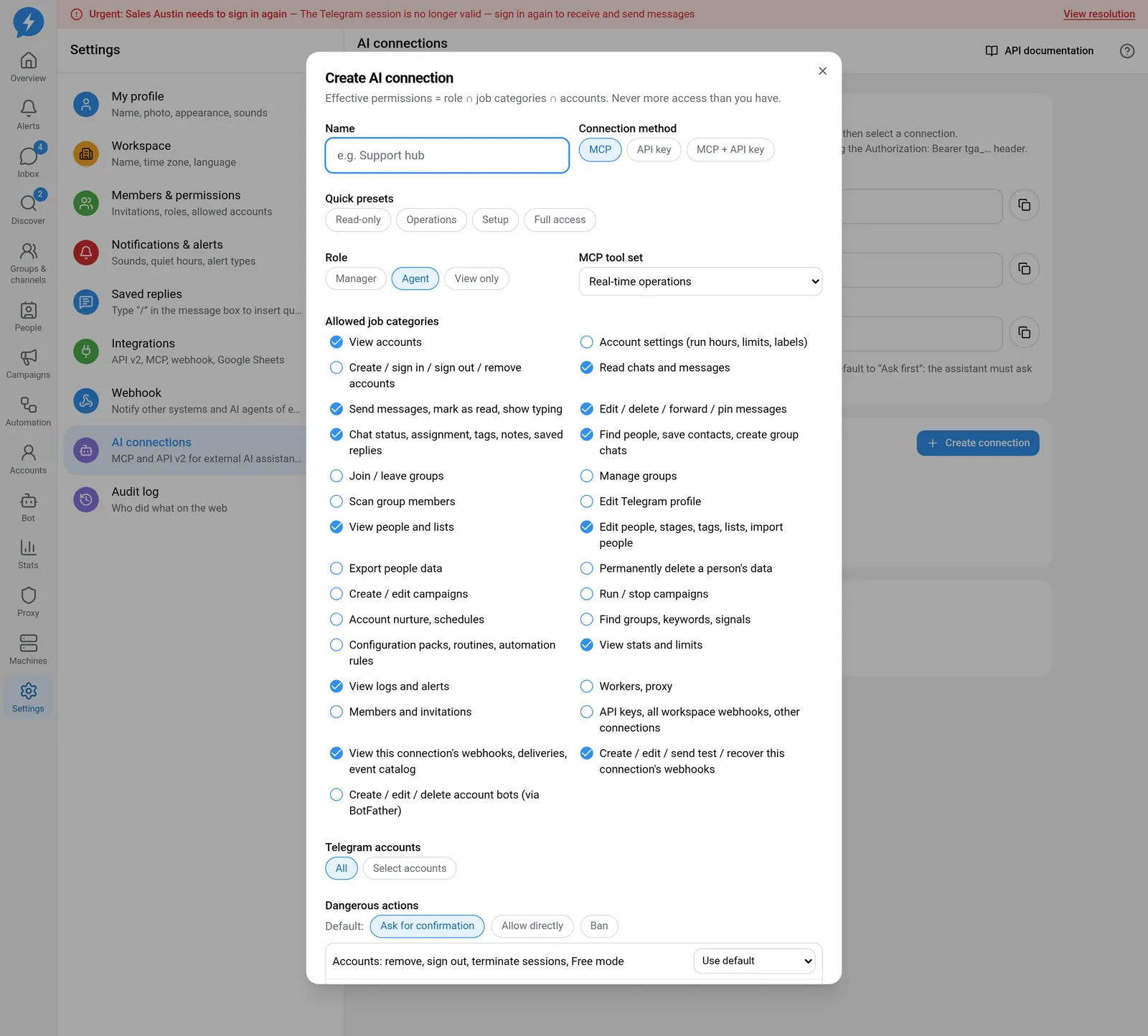
- Choose Create connection.
- Enter a Name to identify the assistant.
- Choose a Connection method that suits your program.
- Choose a Role no higher than your own permissions.
- Choose a suitable MCP tool set.
- Choose Allowed job categories using the minimum access needed.
- Choose the Telegram accounts the assistant may access.
- Set Language for AI. This changes the language of descriptions, errors and reasons. It does not change operation codes, event codes or data.
- Check Dangerous actions. Keep the Ask for confirmation policy unless you have a reason to change it.
- Choose Create.
If you use an API key, copy the tga_… key as soon as it appears. It is only shown once. Do not paste it into conversations, screenshots or logs.
Connect with OAuth
In your MCP client, add this address:
https://tlg.builera.app/mcpSign in to Telegram-Auto, review the consent screen and choose the appropriate connection. Do not approve if the workspace or permission scope is wrong.
Connect with an API key
REST v2 uses this base URL:
https://tlg.builera.app/api/public/v2MCP with an API key uses:
https://tlg.builera.app/api/public/mcpBoth use this header:
Authorization: Bearer $TELEGRAM_AUTO_API_KEYUnderstand tool sets
The profiles are realtime, setup, prospecting, reports, admin and full. Each profile exposes up to 35 tools, including helper and discovery tools.
An operation is not necessarily forbidden just because it has no dedicated tool name. The assistant uses tools_search, reads the contract with tools_describe, then calls tools_run. Permission checks remain the same.
Result
The connection has its own identity, account scope and command history. When handling customers, the assistant must claim the conversation with conversations.claim, must not take someone else's lock and must release the lock when finished.
Check
Open Recent actions to review commands, statuses and errors. Have the assistant call whoami before working.
Use Edit to narrow permissions. Stop now rejects new commands, cancels the connection's queued or held jobs and releases conversations. Sent messages are not recalled.
Only choose Delete after checking that you have the right connection.
If something goes wrong
Check the connection's status, role, scopes, accounts and expiration. For confirmation_required, the assistant must ask the person. It must not decide to confirm on its own.
Do it with the API or MCP
- View connections.
- Edit a connection.
- Stop a connection.
- MCP: use
tools_runwith the corresponding code after readingtools_describe.
See also sending safely and action confirmations.