Integrations
Create and monitor webhooks
Send signed events to your system, monitor deliveries and handle the dead-letter queue.
You create a webhook so an external system can receive events without polling the API. A webhook sends notifications. To reply to a customer, the receiver must call a separate send-message operation.
Who can do this
On the web, you need integration management permissions. An AI connection with webhooks.read and webhooks.manage can manage its own webhooks; integrations.manage extends that scope to webhooks across the workspace.
Before you start
- A public HTTPS receiver URL, such as
https://example.com/telegram-events. - A receiver that verifies signatures and prevents duplicate processing.
- A list of events, accounts and content that actually need to leave the system.
The limits are 10 webhooks per AI connection and 50 webhooks per workspace.
Where to start
Open Settings → Webhook.
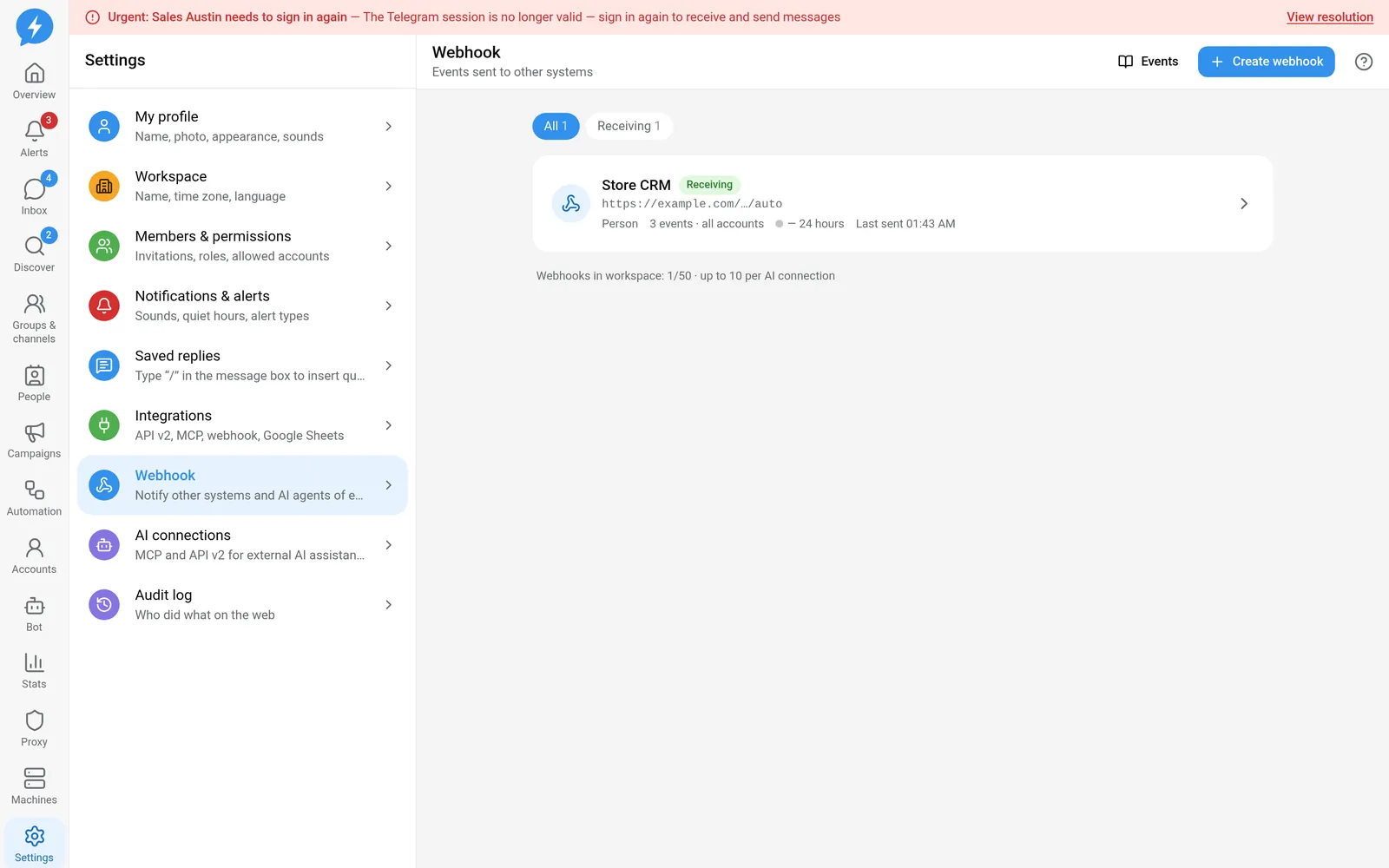
Steps
- Open the webhook creation form.
- Enter a name to identify the destination.
- Enter the receiver URL.
- Choose the events to monitor.
- Narrow the accounts whose events are included.
- Set filters as needed.
- Choose the content mode.
- Save the configuration.
- Save the signing secret in the receiver's secret store.
- Open the webhook and choose Send test.
Filters can narrow events by chat type, message direction, automated sender, conversation or keyword. Filters do not expand the webhook owner's permissions.
| Mode | Usage |
|---|---|
thin |
Receive compact information and use the API to read more when needed |
full |
Receive full content within the permission scope |
none |
Omit the content that the payload builder removes in this mode |
Do not interpret full as permission to see every field. Data is still limited by permissions, and oversized payloads may be trimmed.
Result
The receiver gets a POST with a CloudEvents envelope and Standard Webhooks signatures. View results in Deliveries, including the status and error for each attempt.
A delivery has at most 6 attempts in total, not six retries. The schedule is immediate delivery, followed by waits of 1 minute, 5 minutes, 30 minutes, 2 hours and 6 hours after the previous failed attempt. The schedule has ±15% jitter. A valid Retry-After can replace the wait time, up to 6 hours.
A webhook is automatically disabled after 20 consecutive failures spanning at least 1 hour, or if every attempt fails for 12 hours. A 410 response also stops the webhook.
Check
Open Dead-letter queue & replay to view the DLQ. Fix the receiver before redelivering a failed delivery or replaying events for the required period. Replay can cause duplicate side effects if the receiver does not deduplicate by event ID.
In Settings & secrets, an operator can choose Rotate secret. Keep the receiver accepting both old and new keys during the transition. Fully hide secrets in every screenshot.
If something goes wrong
The URL must use public HTTPS. The system blocks private addresses, loopback addresses, internal destinations and destinations pointing back to the application. DNS checks run on the server. Do not use redirects to get around URL checks.
Do it with the API or MCP
Use webhooks.create, webhooks.test, webhooks.deliveries_list, webhooks.redeliver and webhooks.replay.
MCP provides webhooks_create and webhooks_test on profiles that expose them. Call other operations through tools_run. Secret rotation is restricted to people using the web interface.