Guides
Find groups and potential customers
Find Telegram groups, select accounts to join them, and scan for relevant people within Telegram's permitted scope.
Find groups or channels, select Telegram accounts to join them, and collect lists of relevant people. Adding a group to the list does not mean an account has joined it.
Who can do this
Owner and Manager can search, add groups, join, scan, and enable keyword following. Other roles can only read data they are allowed to access.
Before you start
- An account that is logged in, has a proxy, and has an online machine.
- Keywords, an @username, or a group link.
- Permission to view the group's content or members on Telegram.
Searching, joining, and scanning still go through the account's safety gate, limits, and running hours.
Where to start
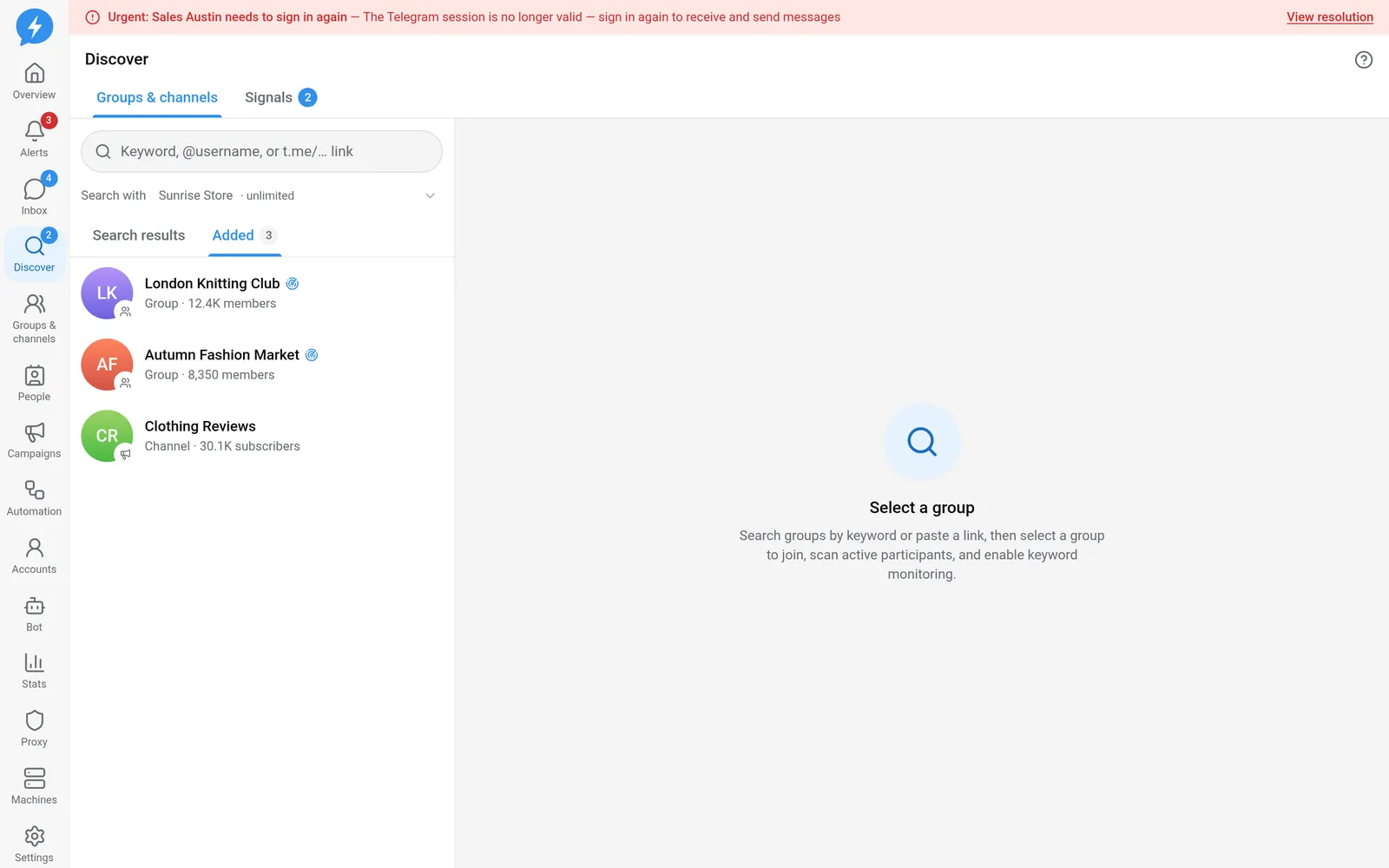
Open Discover → Groups & channels.
Steps
- Enter keywords, an @username, or a t.me link in Keyword, @username, or t.me/… link.
- Select an account under Search with or Read group with. Keywords search for public groups/channels; links and usernames read a specific group.
- Select Add for a result you want to keep.
- Open the group you just added.
- Select an account under Join group with account.
- Click Join group. If approval is required, wait at Join request sent — waiting for admin approval.
- Select an account under Scan with account.
- Select Scan active senders or Scan members.
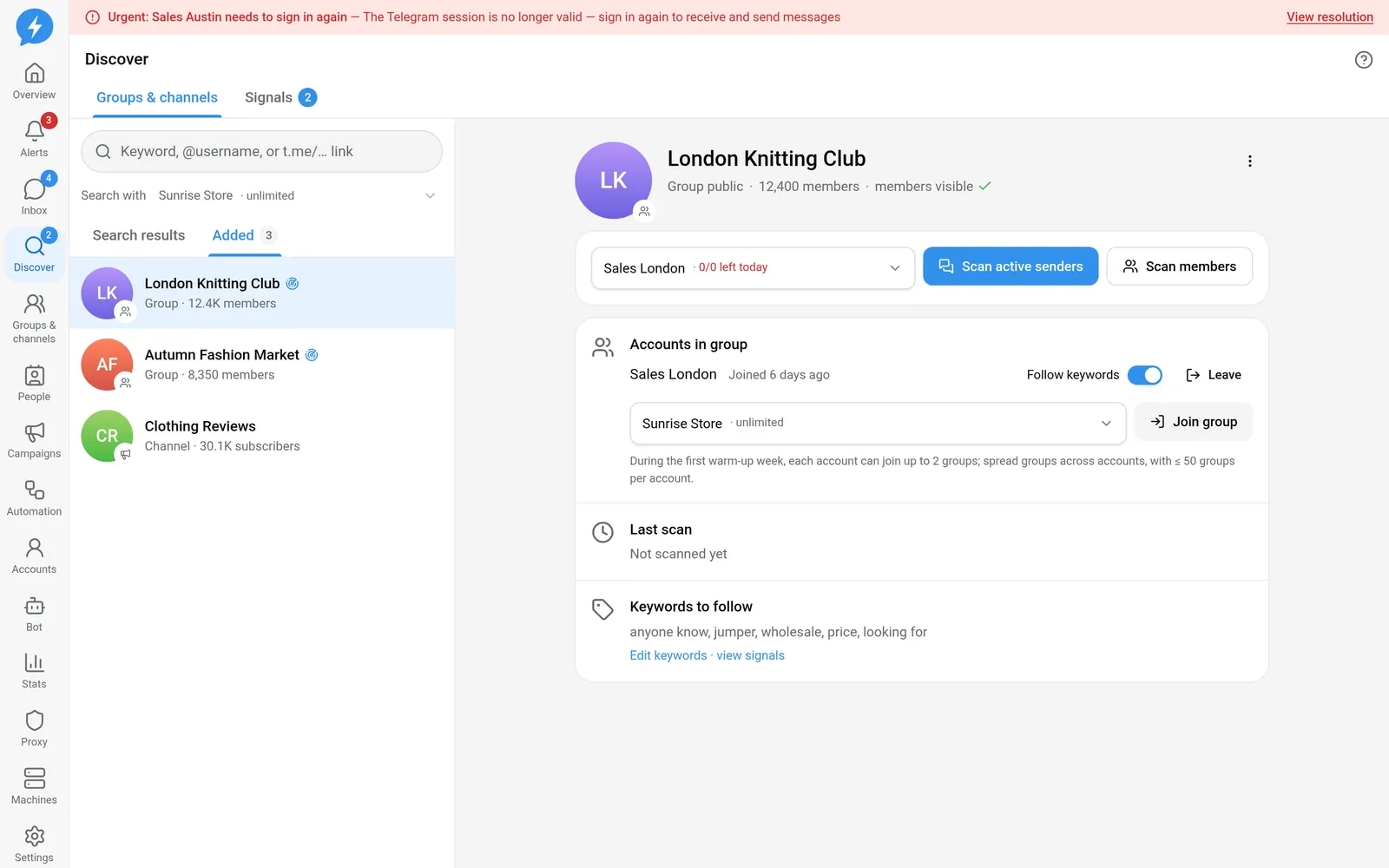
The two scanning methods have different scopes:
| Scanning method | Scope |
|---|---|
| Active senders | Reads up to 500 messages or up to 7 days back; collects senders found in the messages it can read |
| Members | Up to 200 people per scan, if Telegram allows access to the list |
Each account has a hard cap of 2,000 people/day from scans. This cap still applies in Free mode. The number of scans is also subject to the account's effective limit.
A group must wait 24 hours after a scan before the next normal scan. You can confirm Scan again sooner; this uses another scan and does not override the daily cap. Existing people are updated, not duplicated.
- Enable Follow keywords using an account that is already in the group.
- Open Edit keywords · view signals to configure keywords using the signals guide.
Result
The group appears in the discovery list. Open scan results with View results; saving people to People is a separate step.
Check
Check that the account has joined, review scan progress, and check Last scan. For channels, active senders usually include only post authors; do not treat this as a subscriber list.
If something goes wrong
- Private group: have the account join first.
- Hidden member list: use active senders if you have permission to read messages.
- Job has not run: check the machine, running schedule, and limits in Logs.
- Expired link or account removed from the group: check again on Telegram.
Do it with the API or MCP
Use groups.search, groups.join, scans.start, and groups.set_watch.
Corresponding tool names: groups_search, groups_join, scans_start, groups_set_watch. The connection needs the correct scopes and account permissions; the API does not override scanning limits.