Guides
Read and resolve alerts
Triage alerts, open the right place to fix them, and verify that the issue is actually resolved.
Use Alerts to identify which issues need attention first and open the right screen to fix them. Marking an alert resolved does not repair a machine, proxy, or Telegram session.
Who can do this
Roles can read alerts according to their permissions. Owner, Manager, and Support can mark alerts resolved. Permission to modify the resource is checked separately. Owner and Manager can change workspace alert types.
Before you start
Identify the correct workspace. If an alert concerns an account, check that you are working on the correct account, machine, or proxy.
Where to start
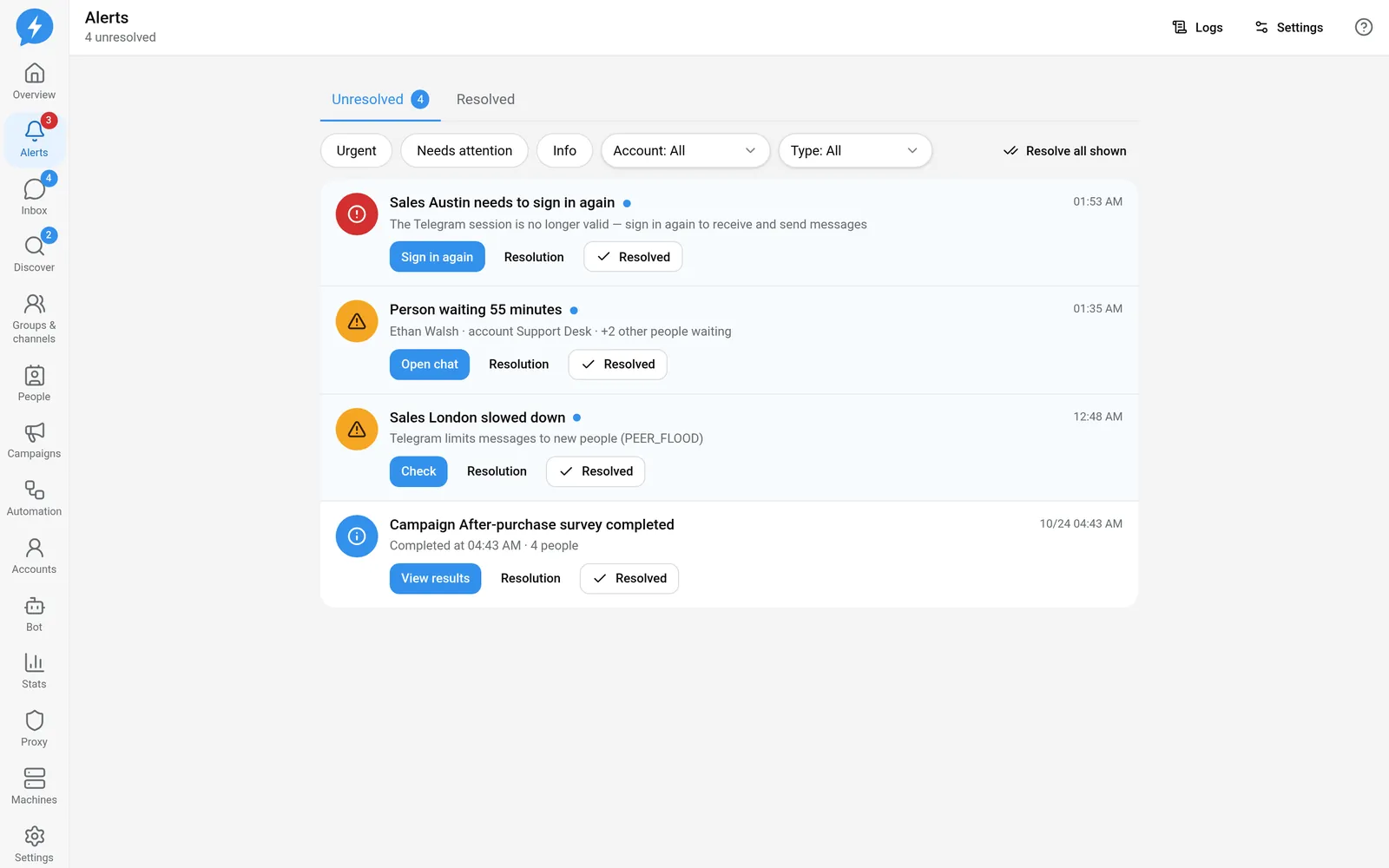
Open Alerts. When urgent alerts exist, the red banner at the top of the app provides quick access to issues needing attention.
Steps
- Select Unresolved.
- Filter by Account if you are responsible for a specific account.
- Select Alert type to narrow the list.
- Read the alert's severity, time, and description.
The current catalog classifies alerts as follows:
| Severity | Situations |
|---|---|
| Urgent | Account restricted/frozen or requires sign-in again; machine disconnected; proxy failure or IP change; support SSH session cannot be closed |
| Needs attention | People waiting; account slowing down; machine nearly full; webhook automatically disabled, stopped, or queue full; suspected bot-to-bot loop; automatic rule alert |
| Information | Campaign completed; new keyword signal |
Each alert's content determines its quick-action button. The button may take you to an account, Machines, Proxies, Inbox, a campaign, signals, or a webhook. It is a route to the place to fix the issue, not a promise of automatic repair.
- Select View resolution.
- Read Resolution.
- Open the suggested destination with the alert's action button.
- Perform the appropriate fix.
- Return to Alerts to check.
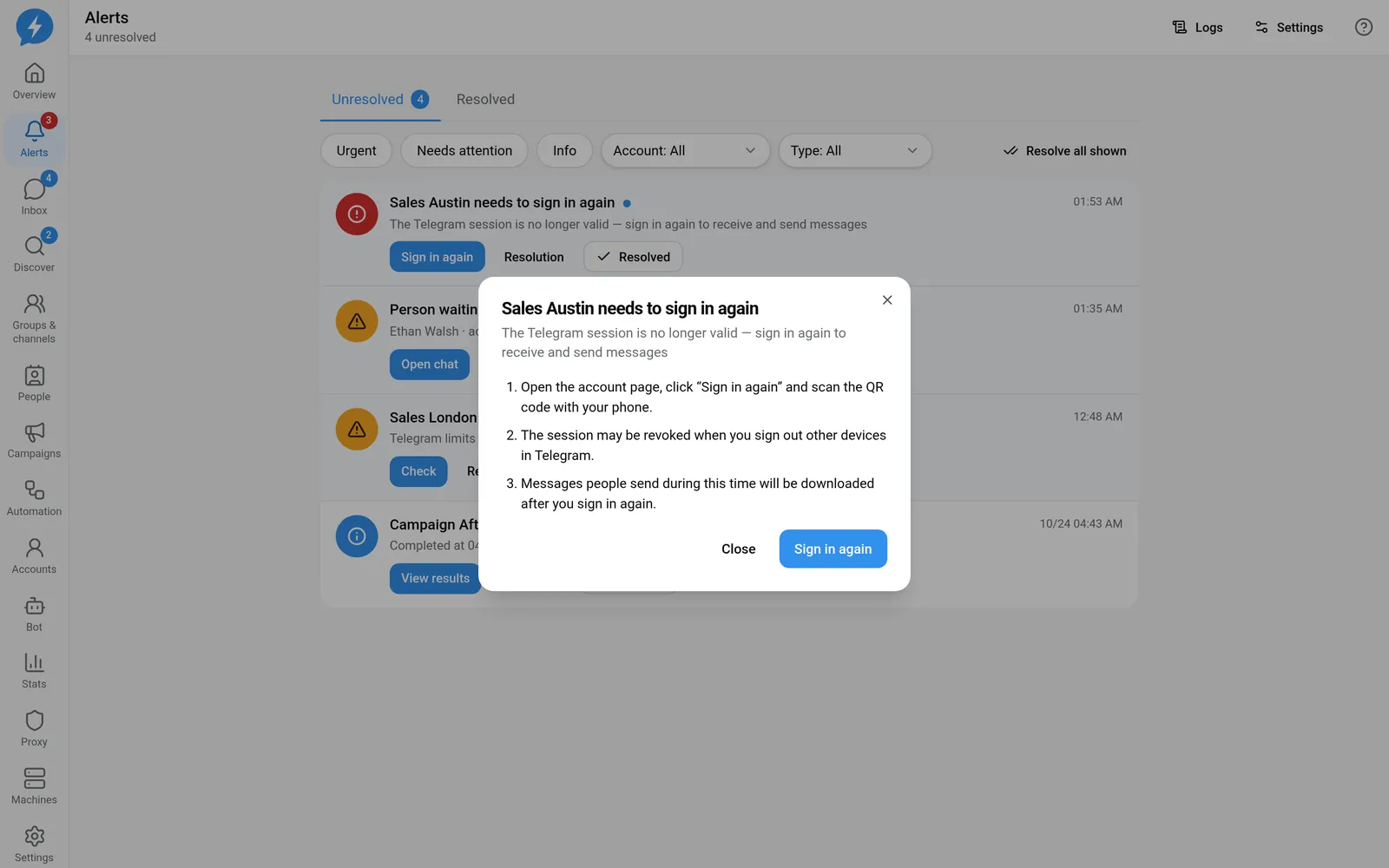
Some alerts show Closes automatically when the issue is resolved. Others need you to mark them.
- Select Resolved after verifying the result.
Use Resolve all shown only after checking the filters and every visible row. Do not use it as a substitute for fixing incidents.
Result
The unresolved list shrinks when issues are resolved or you mark them complete. History remains available in Resolved.
Check
Verify the actual state of the related resource. If the red banner remains, check for other urgent alerts that are still open.
If something goes wrong
A returning alert usually means the triggering condition still exists or has recurred. Read Logs instead of repeatedly closing the alert.
In Settings → Notifications & alerts, adjust alert sounds and quiet hours. Quiet hours follow the workspace time zone. Urgent alerts still sound. Disabling a workspace alert type also closes its currently open alerts.
Do it with the API or MCP
Use alerts.list, alerts.summary, and alerts.resolve.
Tool names: alerts_list, alerts_summary, alerts_resolve. Change rules with alerts.save_rules, tool alerts_save_rules. Personal sound settings are not public AI actions.