Guides
Manage Telegram accounts
Find accounts and manage labels, status, sign-in sessions, and settings on the details page.
Use Accounts to find the account that needs attention, then open its details to check the connection and configuration. Pausing, signing out, and removing an account are different actions.
Who can do this
Members can view accounts within their assigned scope. The management actions in this guide are for Owners or Managers.
Before you start
The account must already be added to the workspace. Actions that request data from Telegram require the account to be signed in and its machine to be able to accept jobs.
Where to start
Open Accounts in the sidebar.
Steps
Select Card view or Table view, depending on how you want to view the list.
Select a tab: All, Running, Warm-up, Needs attention, or Paused.
Use Filter by label to narrow the list if needed.
Enter a keyword in Search name, @username, label.
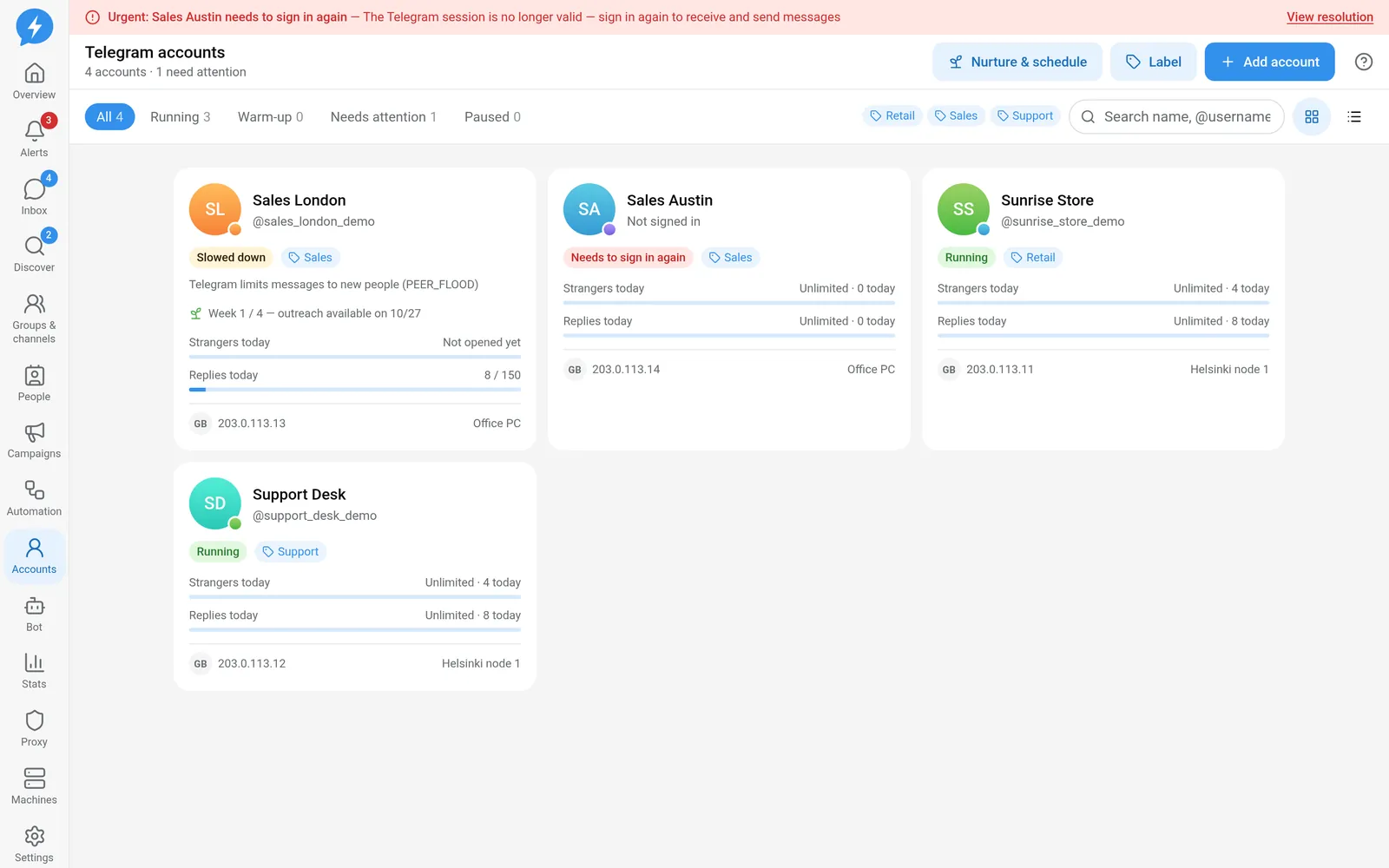
Find the account that needs attention Click Label to open the tool for updating labels on selected accounts.
Open the account you want to manage.
Select the tab for your task.
| Tab | Use it to |
|---|---|
| Overview | Check health and activity details |
| Telegram profile | Manage profile information |
| Limits & schedule | Set the mode, limits, and run schedule |
| Network & machine | View or change the proxy and machine |
| Sign-in sessions | View devices and manage sessions |
| Privacy | Read and change Telegram privacy settings |
| Logs | View jobs and their results |
Pause and check
- Click Pause to stop assigning jobs to the account.
- Click Resume to continue after checking the cause.
Resuming does not skip safety gates or requirements to sign in again.
To check a specific issue, use Resync for chats or Check @SpamBot to queue a restriction check. The @SpamBot check result appears in Logs.
Sign-in sessions and privacy
- Open Sign-in sessions.
- Click Reload to request the device list.
- Select Sign out or Sign out Telegram-Auto only after identifying the correct session and reading the confirmation.
- Open Privacy to check visibility settings.
- Click Load from Telegram to fetch the current settings before editing.
Privacy exceptions set on your phone are preserved.
Remove an account
- Select Remove account.
- Read the confirmation.
- Click Remove if this is the correct account.
“Internal” accounts
There is no Internal toggle in the current account details tabs. This label automatically identifies a person corresponding to a workspace account and appears in Inbox. It is not a mode you enable on Accounts.
See internal accounts.
Result
You can organize accounts and take the appropriate action: stop jobs, change settings, manage sessions, or remove accounts from the workspace.
Check
After an action, check the new status and Logs. For requests sent to a machine, a “queued” notification does not confirm that Telegram has completed the action.
If something goes wrong
Check sign-in, the proxy, and the machine before sending the request again. Do not use Resume instead of resolving a Telegram restriction.
Do it with the API or MCP
Actions include accounts.set_tags, accounts.set_paused, accounts.initial_sync, accounts.check_spambot, and accounts.remove.
Corresponding MCP names: accounts_set_tags, accounts_set_paused, accounts_initial_sync, accounts_check_spambot, accounts_remove. See the MCP reference for how to find and run actions.