Guides
Connect Hetzner and launch machines for accounts
Connect your Hetzner project so the app can create and manage machines for Telegram accounts.
Connect your Hetzner project so the app can launch machines and install the worker automatically. Hetzner bills you directly for infrastructure.
Who can do this
Only the workspace Owner can connect or remove a Hetzner token. Once connected, Owners or Managers can launch and manage machines.
Before you start
A Hetzner Cloud account with verified billing. Create a separate project for Telegram-Auto so the token has no access to other infrastructure.
Where to start
Open Machines, then select Connect Hetzner.
Steps
Open Hetzner Console.
Create a separate project for Telegram-Auto.
In the project, open Security → API tokens.
Create a token with Read & Write permissions.
Copy the token into Paste Read & Write token in the app.
Enter a Project name (for your reference).
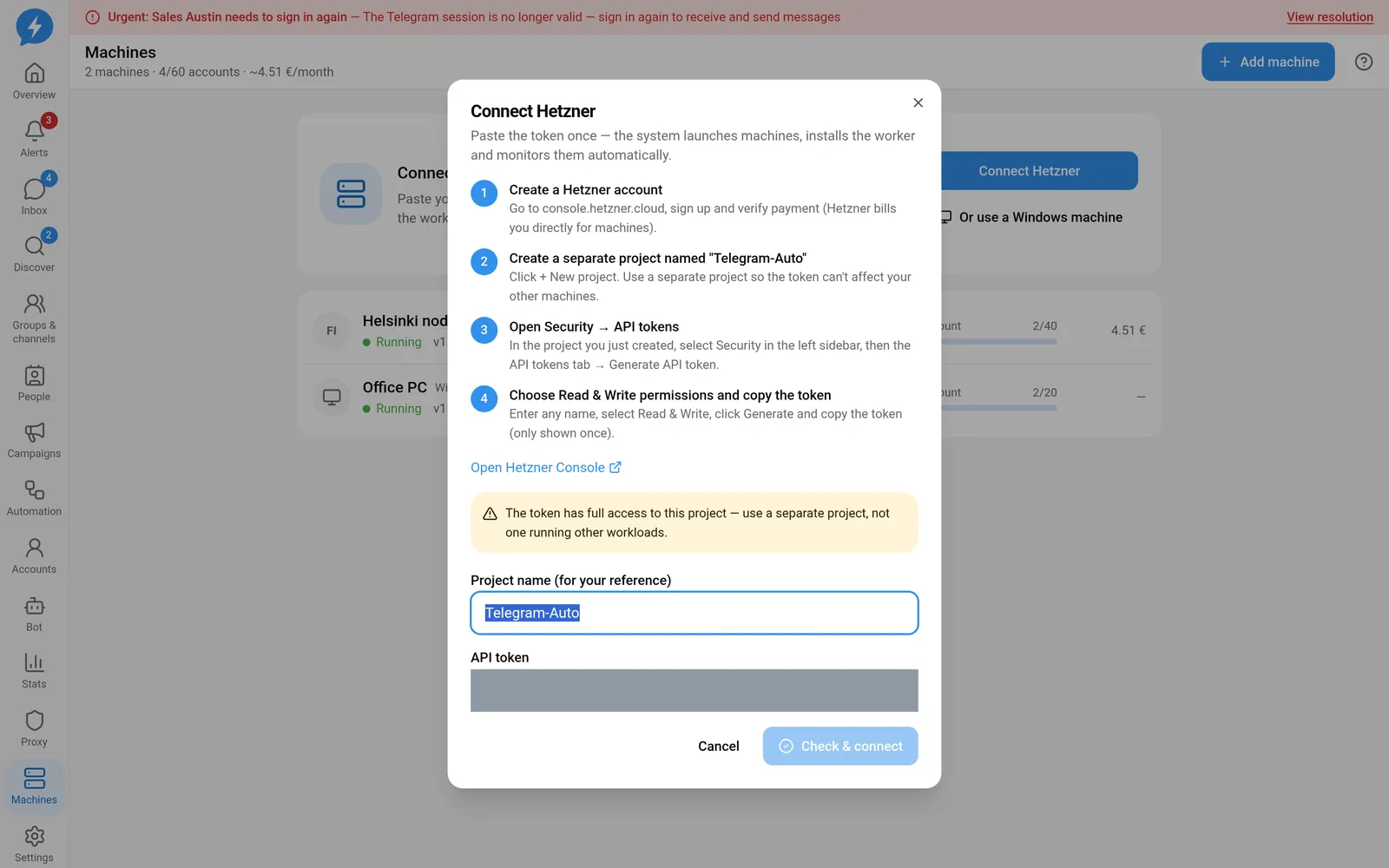
Use a token from a separate project Click Check & connect.
Once connected successfully, click Add machine.
Select a suitable Region.
Check the specifications, price, and expected capacity.
The app fetches prices from Hetzner and chooses the cheapest machine type in the selected region among those meeting the minimum memory requirement. This is not a promise to choose the cheapest machine across all regions.
The displayed price includes the machine and IPv4, excluding VAT. Do not treat a fixed introductory figure as a quote. The default Hetzner machine capacity is 40 accounts, according to DEFAULT_CAPACITY_HETZNER. Check the actual capacity and usage on screen.
- Click Launch machine.
- Open the machine details to follow Installation logs.
- Wait for Worker connected before assigning accounts.
Delete a machine
- Move accounts off the machine if it still has any.
- Open the details of the machine you want to delete.
- Click Delete machine.
- Enter the machine name in Retype the machine name to confirm.
- Confirm Delete machine.
Support SSH access
Machines may display Support team has SSH access while a temporary support session is active.
The workspace interface currently has no step for you to grant SSH access. The tools for opening and closing sessions are in platform administration, not in the workspace's machine details.
Result
The new machine appears in the workspace with the worker installed. It can accept accounts once connected, provided it has space and has not stopped accepting new accounts.
Check
Verify the region, price, connection status, and number of assigned accounts. In the machine details, check installation logs and resource metrics when data is available.
If something goes wrong
If machine creation fails, read the logs before using Retry machine creation. If the token has been removed, the machine may keep running, but the app can no longer manage Hetzner. The Owner needs to reconnect it.
See machine offline.
Do it with the API or MCP
Connecting and removing Hetzner tokens are actions for people using the app only. There is no public action page for them.
Once connected, use hetzner.offers, nodes.create_hetzner, and nodes.delete. MCP names: hetzner_offers, nodes_create_hetzner, nodes_delete.