Guides
Add, check, and replace proxies
Manage the proxy pool, import multiple lines, and assign a dedicated proxy to each Telegram account.
Manage proxies in the workspace pool, check their connections, then assign them to accounts. Each account uses a dedicated proxy. Do not share proxies between accounts.
Who can do this
Workspace Owners or Managers can add, edit, check, and delete proxies, or replace an account's proxy.
Before you start
Have the host, port, proxy type, and credentials ready if the provider requires them. Use fixed-IP proxies. Proxies flagged for IP rotation cannot be selected when adding accounts.
The app supports SOCKS5 and HTTP, with or without passwords. Select the type supplied by your provider. Do not change types just to try to get past an error.
A workspace machine must be running to perform checks. Proxies are checked from the machine, not from your web browser.
Where to start
Open Proxies → Add proxy.
Steps
Add one proxy
Select Single proxy.
Select Type.
Enter Host and Port.
Enter Username and Password if needed.
Enter a declared country, label, or provider if you want to save these details.
Click Add proxy.
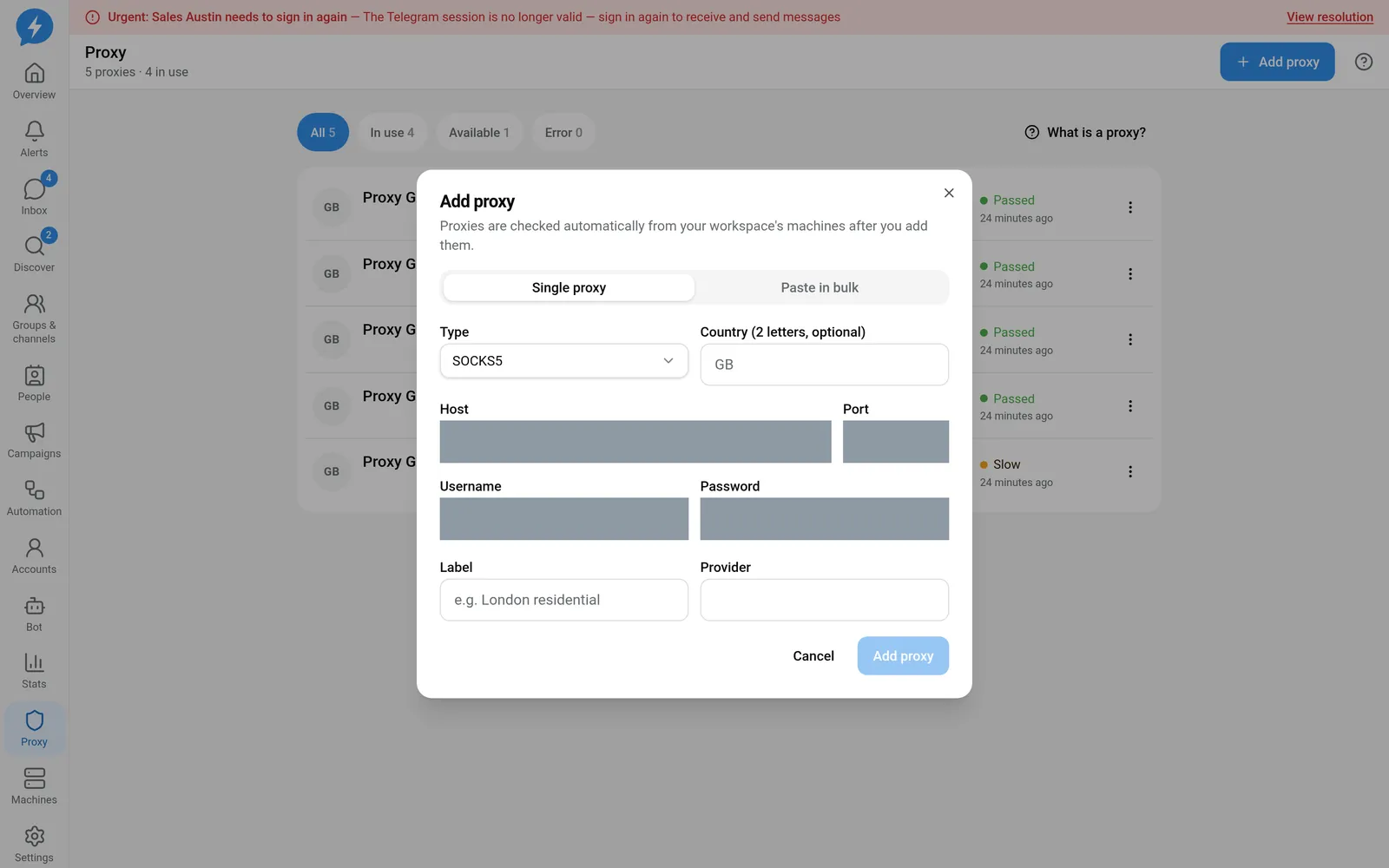
Select the type supplied by your provider
Import multiple proxies
- Select Paste in bulk.
- Select the default type for lines without a protocol prefix.
- Paste one proxy per line.
The parser supports these formats:
proxy.example.com:1080
proxy.example.com:1080:demo_user:demo_password
demo_user:demo_password@proxy.example.com:1080
socks5://demo_user:demo_password@proxy.example.com:1080
http://demo_user:demo_password@proxy.example.com:8080
These are dummy examples showing the structure. Do not use them as real connection settings.
- Check the valid lines and reported errors.
- Click the add button showing the valid proxy count.
The result message reports how many were added and which duplicate lines were skipped.
Check and assign to accounts
- Wait for the automatic check after adding.
- Select Recheck to request a new check.
- Read the status and observed details.
| Display | What to do |
|---|---|
| Passed | Can be selected if available and not flagged for IP rotation |
| Slow | Check latency; the add-account interface may still allow selection |
| Error | Correct the details or resolve the connection before assigning |
| Country mismatch | Compare the declared country with the actual IP country |
| Waiting for a machine | Connect a workspace machine to perform the check |
Country mismatch does not mean the proxy is blocked. The interface may show that the proxy still works in its actual country. Verify this with the provider before use.
- When adding an account, select the proxy at the Proxies step of the add-account dialog.
Replace or delete a proxy
To replace a proxy, open the account → Network & machine, then change the proxy. Do not delete an assigned proxy to replace it. The pool page does not allow deletion of proxies in use.
For an available proxy, select delete, read the confirmation, then click Delete.
Result
The proxy is saved in the pool and receives a check result when the machine finishes processing it. Valid, available proxies can be selected for accounts.
Check
Verify the type, IP, and observed country. After replacing a proxy, check the account again in Network & machine and Logs.
If something goes wrong
If no machine is running, do not change the password just because the proxy has not been checked. If its status is Error, verify the host, port, type, and credentials with the provider.
Do it with the API or MCP
Use proxies.add, proxies.recheck, accounts.change_proxy, and proxies.delete.
MCP names: proxies_add, proxies_recheck, accounts_change_proxy, proxies_delete. Do not include proxy passwords in public conversations.