Guides
Handle messages in Inbox
Select accounts, handle conversations, and check sending results in the shared inbox.
Use Inbox to read and reply to messages from multiple Telegram accounts in the same workspace. Always check the account and recipient before sending.
Who can do this
Owner, Manager, and Support can use Inbox. Support access also depends on the accounts assigned to them. The Viewer role cannot read or reply to inbox messages.
Before you start
The account must be logged in, with a machine keeping it connected. Your browser needs microphone permission if you record voice messages.
Where to start
Open Inbox in the left menu.
Steps
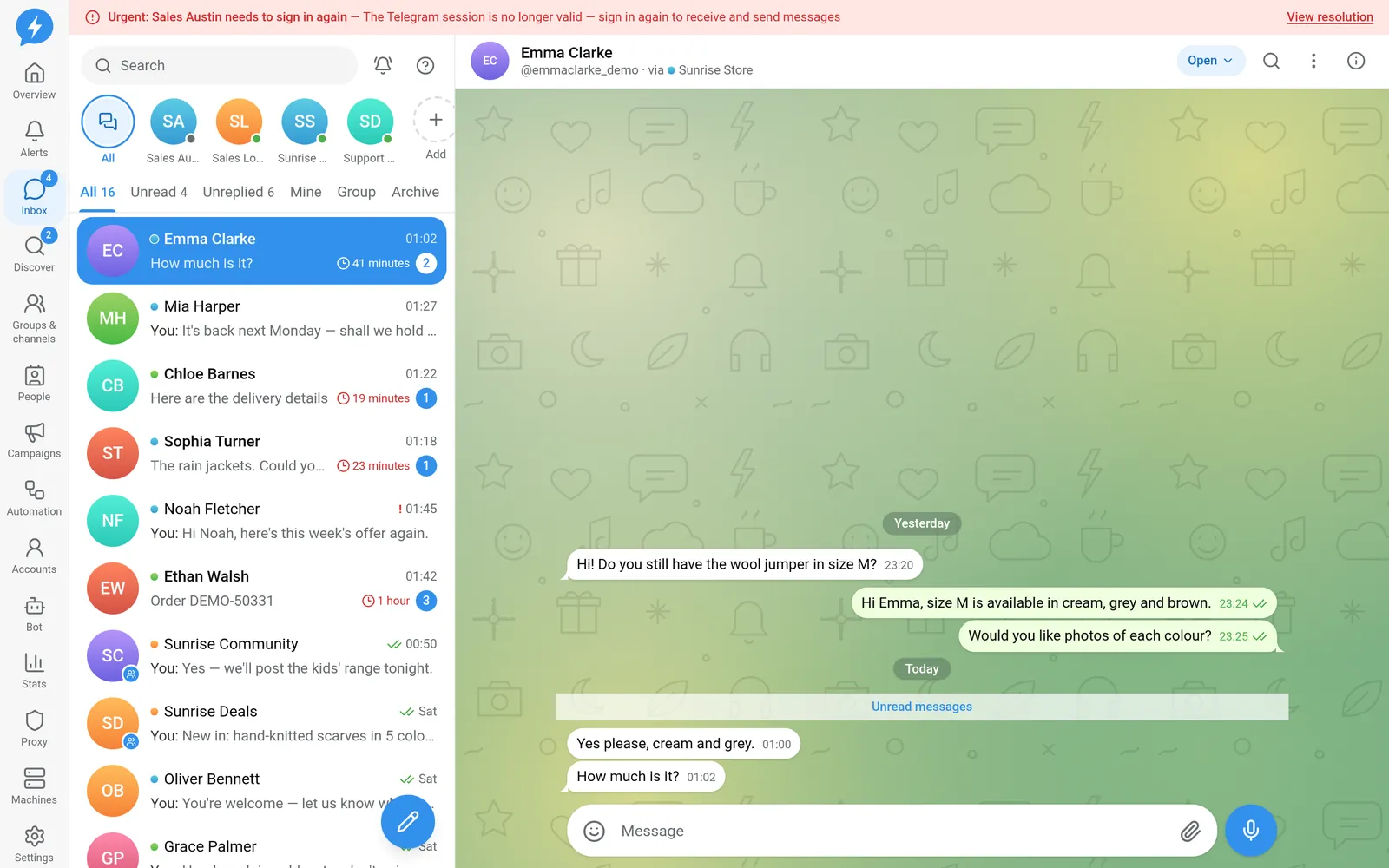
Select the account scope in the row above the chat list. The conversation list changes with this selection.
Select a filter tab. Tabs include All, Unread, Unreplied, Mine, Group, and Archive; the account's Telegram folders may also appear. Unread and Unreplied are different: a message that has been read may still need a reply.
Find a conversation. Use Search to search by name, username, or content. To search within the open conversation, use Search in chat.
Open a conversation. The Unread messages divider shows where to continue reading. The list also shows how long the person has been waiting — a signal for prioritizing, not a message-sending schedule.
Take responsibility for handling it. Open Assignee, then select Assign to me or an appropriate team member. The Status menu shows the current status, such as Open. Assigning someone does not mean the person has received a reply.
Compose the message. Type in Compose message. Drafts are kept separately for each conversation. Telegram drafts from your phone or another machine also appear here; when you leave a chat after editing, the draft syncs back to Telegram.
Add attachments if needed. Use Attach to select photos, videos, or files. For a voice message, hold Record voice message to start, then send it or select Cancel recording. Type
/to insert a saved reply.Click Send. The message appears immediately in the chat pane and enters the sending queue. Within the same conversation on an account, messages are sent in the order you click; an earlier message that is waiting or being reconciled holds later messages back.
Handle an existing message. Use Reply to preserve context, Reactions to react, or open Message actions to forward, edit, or delete when permitted.
- Open the person's information. The right pane shows the account, assignee, stage, tags, and notes. Use Pin to top to keep the chat easy to find; select Unpin when finished.
Result
Sent messages and replies appear in the same conversation history. Other team members can see who is handling the conversation and continue with the right context.
Check
| Display | Meaning |
|---|---|
| Sending | No final sending result yet |
| Sent | Telegram has accepted the message |
| Seen | The recipient has read it |
| Couldn't send yet | An error occurred; check the reason before retrying |
| Rechecking | The result is unclear and is being reconciled with Telegram |
| Waiting: … | The job is held for a specific reason |
If something goes wrong
The Account disconnected — messages will send when it reconnects banner does not mean the message has reached the person. Do not send an identical copy just because you have not seen a result.
When the result is unclear, wait for reconciliation instead of resending. See Unverified sends.
Do it with the API or MCP
Use messages.send, corresponding to the MCP tool messages_send. Permissions and safety checks still apply; see the MCP reference and the handle Inbox playbook.