Guides
Add a Windows machine for accounts
Create a pairing code, install the worker on Windows, and manage its language through the tray icon.
You can use your own Windows machine or Windows VPS to keep Telegram connected. The machine must stay on and connected to the network to receive jobs.
Who can do this
The workspace Owner or Manager creates the machine and pairing code. The installer needs to be signed in to Windows and able to run PowerShell under their own user account.
Before you start
- A Windows machine meeting the compatibility requirements shown in the setup dialog.
- A network connection that allows downloading the installer and connecting to the service.
- Permission to use the machine for as long as the accounts need to operate.
The installer runs with standard permissions. You do not need to open PowerShell as Administrator. It downloads a separate Node environment and verifies the release.
The default capacity is 20 accounts, according to DEFAULT_CAPACITY_WINDOWS. This is a capacity setting, not a guarantee that every Windows machine will run well at that level.
Where to start
Machines → Add machine → My Windows machine.
Steps
Enter a Machine name to identify it in the workspace.
Click Create pairing code.
Set Language on the machine to Vietnamese or English.
Click Copy command.
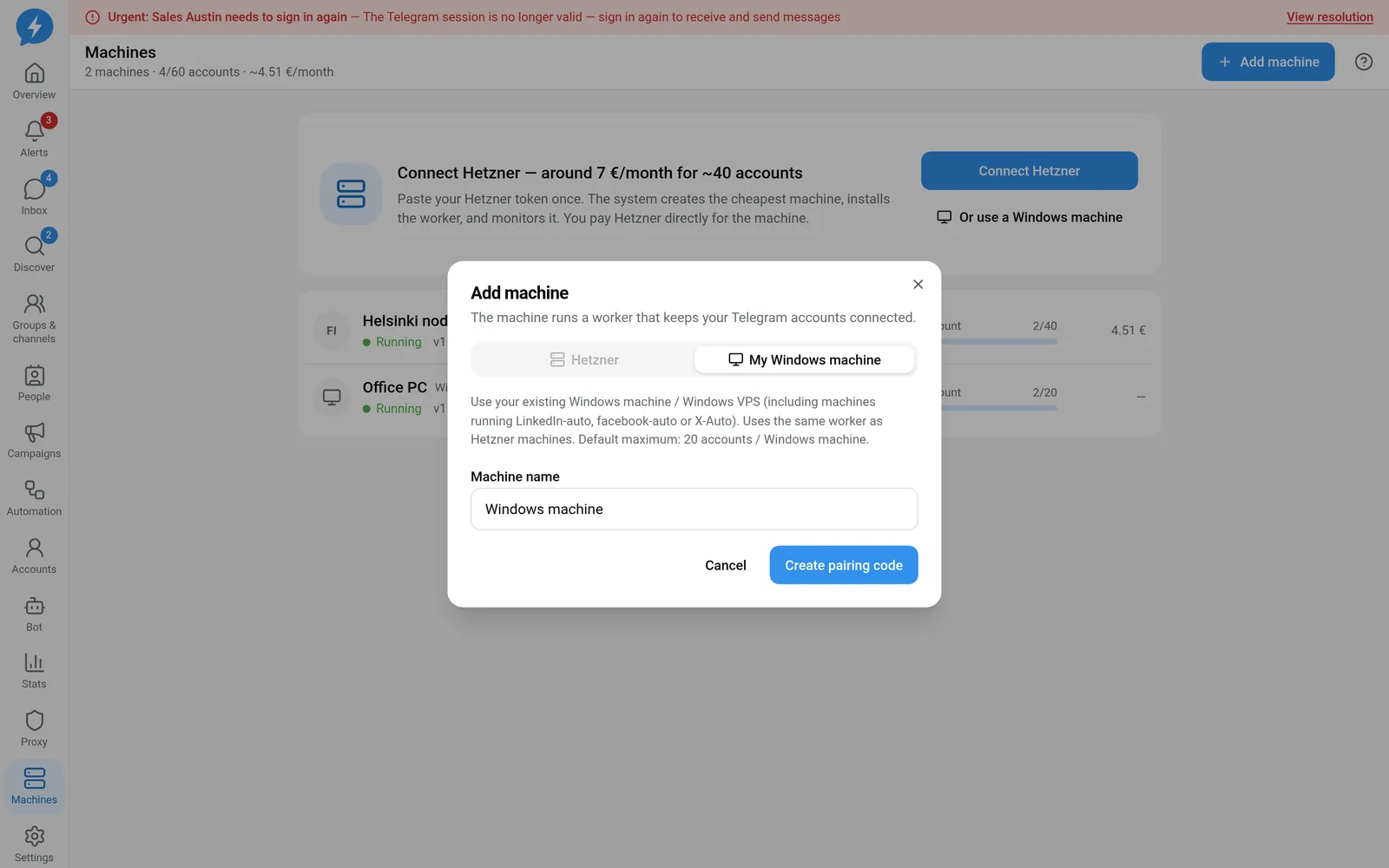
Name the machine before creating the code
- Open PowerShell on the Windows machine you want to connect.
- Paste and run the entire copied command.
The command includes lang=vi or lang=en according to Language on the machine. Do not use an expired command or replace its code with another machine's code.
- Follow the installer output in PowerShell.
- Return to the app and wait for Windows machine paired.
- Open the newly added machine to check its connection status.
Use the tray icon
Right-click the Telegram-Auto icon to open the menu:
| Item | Function |
|---|---|
| Open web app | Opens the web app |
| Pause / Resume | Controls the worker on the machine |
| View log | Opens the local log |
| Language | Select Vietnamese or English |
| Hide icon | Hides the tray icon |
Language changes apply immediately and are saved in the machine configuration. The uninstaller also reads the saved language choice. Hide icon does not uninstall the software.
Uninstall and reinstall
Run the uninstaller from the path reported by the installer. The uninstall script is at %LOCALAPPDATA%\TelegramAuto\uninstall.ps1.
Deleting the machine record on the web only revokes the Windows machine's key. It does not automatically uninstall the local software.
To pair again, open the unpaired machine in the app, create a new code, and run the new installation command. After reinstalling, check each account's status. Do not assume old local sessions are still available.
Result
The Windows machine appears in the workspace, and the worker receives jobs while connected. You can select the machine when adding an account.
Check
Check the machine status on the web and the tray menu. Do not let Windows sleep or shut down while accounts need to run.
If something goes wrong
Expired code: click Create new code, then copy the command again. Signature error or download mismatch: stop and check the message. Do not try to skip verification.
See machine offline.
Do it with the API or MCP
Use nodes.create_windows and nodes.pairing_code. MCP names: nodes_create_windows, nodes_pairing_code.
The API creates pairing information. You still need to run the installer on the Windows machine.