Guides
Manage people and follow-up stages
Filter people, update profiles, and manage the do-not-contact list.
People brings profiles together so you can track outreach and follow-up. Categorize people, add notes, and add the right people to campaigns without searching through every conversation again.
Who can do this
Owner and Manager can manage people. Support permission to reply in Inbox does not include managing all People data.
Before you start
People come from conversations, Discover, file imports, or manual entry. Agree on how to use stages and tags so your team does not use several names for the same thing.
Where to start
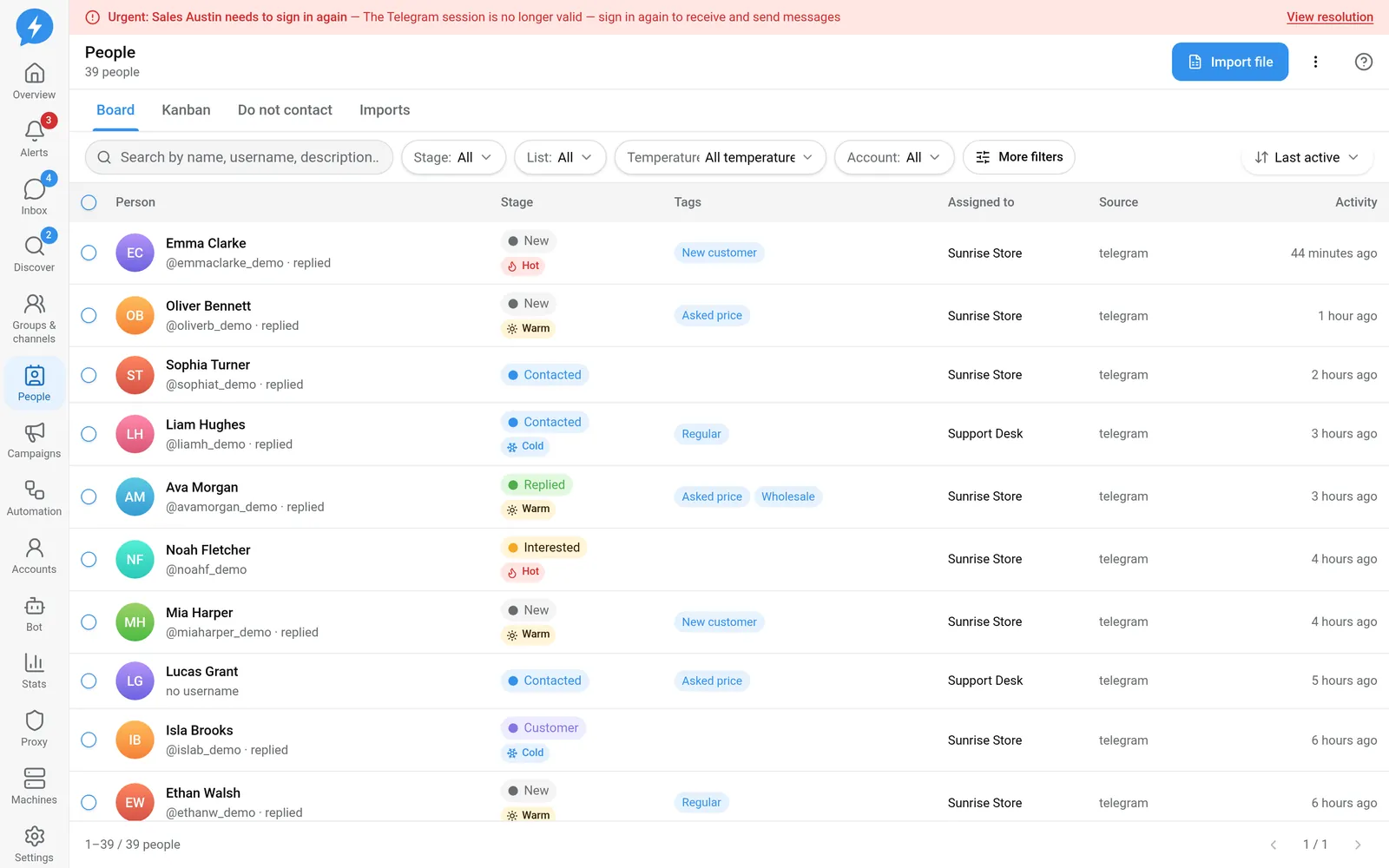
Open People in the left menu. The page has three tabs: Board, Do not contact, and Imports.
Steps
Select a view. In Board, use View mode to switch between table and kanban. The table is useful for filtering; kanban shows people by stage.
Narrow the list. Search by name, username, or description. Combine Stage, List, Temperature, Account, Source, Tags, and Messaged / replied.
Open a profile. Select a person to open Person’s details. Check the source and conversation before updating, especially when several people have similar names.
Set Stage. Select the stage that reflects the actual work. To change the shared structure, use Stages & lists.
Set Temperature. Values are Hot, Warm, Cold, or unclassified. These labels are set by people; the app does not score them automatically.
Check Assigned to. In a person's profile, this is the responsible account — different from the Assignee of an Inbox conversation.
Add Tags or Notes. Tags help you filter later. Notes are internal and are not sent to the person; click Save note after entering them.
Open the conversation. Select Open in Inbox to see the full exchange in context.
Add people to a campaign. Select the people you want to contact, then use the action to add them to a campaign. Check the audience and sending accounts in the campaign again before starting.
Record do-not-contact requests. Use Do not contact when someone declines further contact, then check the tab with the same name.
Result
Profiles have stages, temperatures, and context to help your team coordinate. The do-not-contact list is a workspace-wide exclusion check, not just a tag.
Check
Filter by the tag or stage you just set. Open the profile to view the Timeline. In kanban, the person should appear in the correct stage column.
If something goes wrong
Cannot find someone: try Clear filters. If the person has been excluded, check Do not contact instead of importing them again.
Do it with the API or MCP
Use people.list, people.set_stage, and people.suppress — MCP people_list, people_set_stage, people_suppress. See also Do not contact.