Guides
Invite members and assign permissions
Create email-based invitations, choose roles and manage member permissions using the controls currently available in the interface.
You create invitations for teammates and choose roles that fit their work. Workspace permissions and account access are two separate layers. Do not assign a broad role just to fix missing account access.
Who can do this
Owner and Manager can invite members, change roles or remove members within their permitted scope. Manager can only assign Support and Viewer roles; managing the Manager role requires Owner permissions.
Before you start
- Your teammate's email, such as
colleague@example.com. - The role to assign.
- A private channel for sending the invitation link.
Do not assume the app has emailed the invitation. The current flow creates a link for you to copy and send yourself.
Where to start
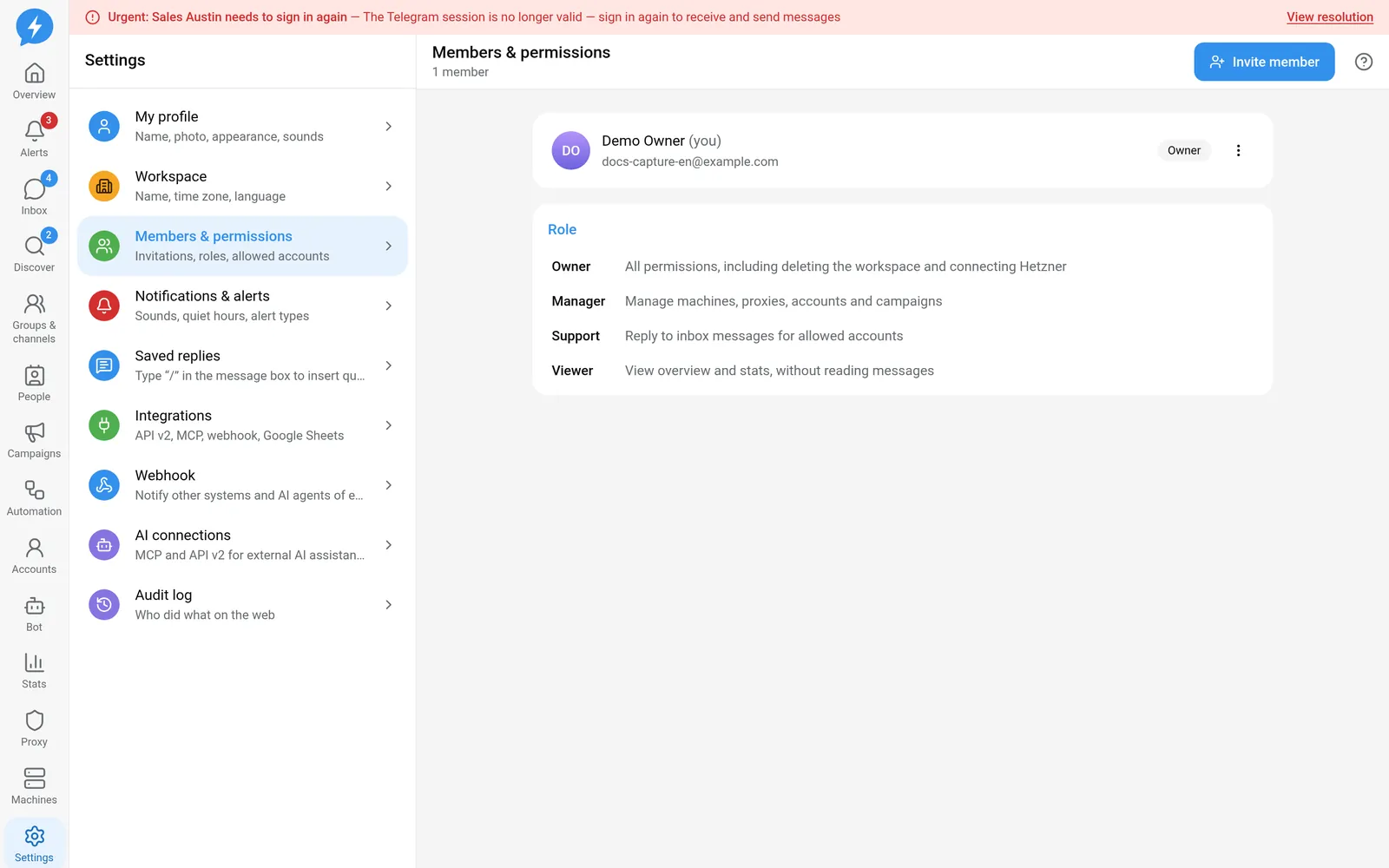
Open Settings → Members & permissions.
Steps
Invite a member
- Click Invite member.
- Enter the email.
- Choose a Role.
- Click Create invitation.
- Click Copy to copy the link.
- Send the link to the correct teammate.
The link is only shown once. If you lose it, revoke the old invitation and create a new one. Do not share screenshots containing the link.
| Role | Main scope |
|---|---|
| Owner | All permissions, including deleting the workspace and connecting Hetzner |
| Manager | Operate machines, proxies, accounts, campaigns and the administrative areas granted to them |
| Support | Read and reply in the Inbox for allowed accounts; no infrastructure management |
| Viewer | View Overview and Stats; no message access |
Support permissions do not grant every Telegram administration action. Actions also check allowed accounts and actual permissions on Telegram.
Check account permissions
The system checks each member's account scope. However, the Members & permissions screen does not currently have a selector for editing each person's account list. The invitation form also has no account selection step.
Do not look for a switch that is not in the interface, and do not promise that choosing a role automatically assigns a specific set of accounts. If a member cannot see an account they need, check the existing permission configuration with an administrator.
Change a role or revoke access
- Open Options on the member's row.
- Choose Change role.
- Choose the appropriate role.
An owner may see Owner among the roles they can assign. The interface has no separate workspace ownership transfer flow to follow. Do not treat a role change as proof that the previous owner has been demoted.
- Choose Remove from workspace if you need to revoke access.
- For an unused invitation, choose Revoke under Pending invitations.
Result
You have an invitation waiting for your teammate to accept, or a recorded role change. Creating an invitation does not mean the person is already a member.
Check
Check the member list and roles after your teammate joins. Ask them to confirm that they can see the right features, not just sign in.
If something goes wrong
A role change may fail because you lack permissions or because workspace owner protection rules apply. Do not try assigning a broader role to get around the checks.
Do it with the API or MCP
Use invites.create, invites.revoke, members.set_role and members.remove.
Tool names: invites_create, invites_revoke, members_set_role, members_remove. The API checks the same roles and membership constraints as the web interface.