Guides
Set account limits and run schedules
Choose a limit mode, set limits by job category, and adjust schedules for one or more accounts.
Set each account's limits and working hours in Limits & schedule. For multiple accounts, you can manage schedules centrally in Nurture & schedule.
Who can do this
The workspace Owner or Manager.
Before you start
Decide on the time zone, days off, and types of jobs the account will perform. Read Free and Safe before changing modes.
Where to start
Accounts → open an account → Limits & schedule.
Steps
- Check the current Limit mode.
- Select Safe to apply standard limits, warm-up, and a rest schedule.
If you select Free, read the warning and select I understand the risks of Free mode.
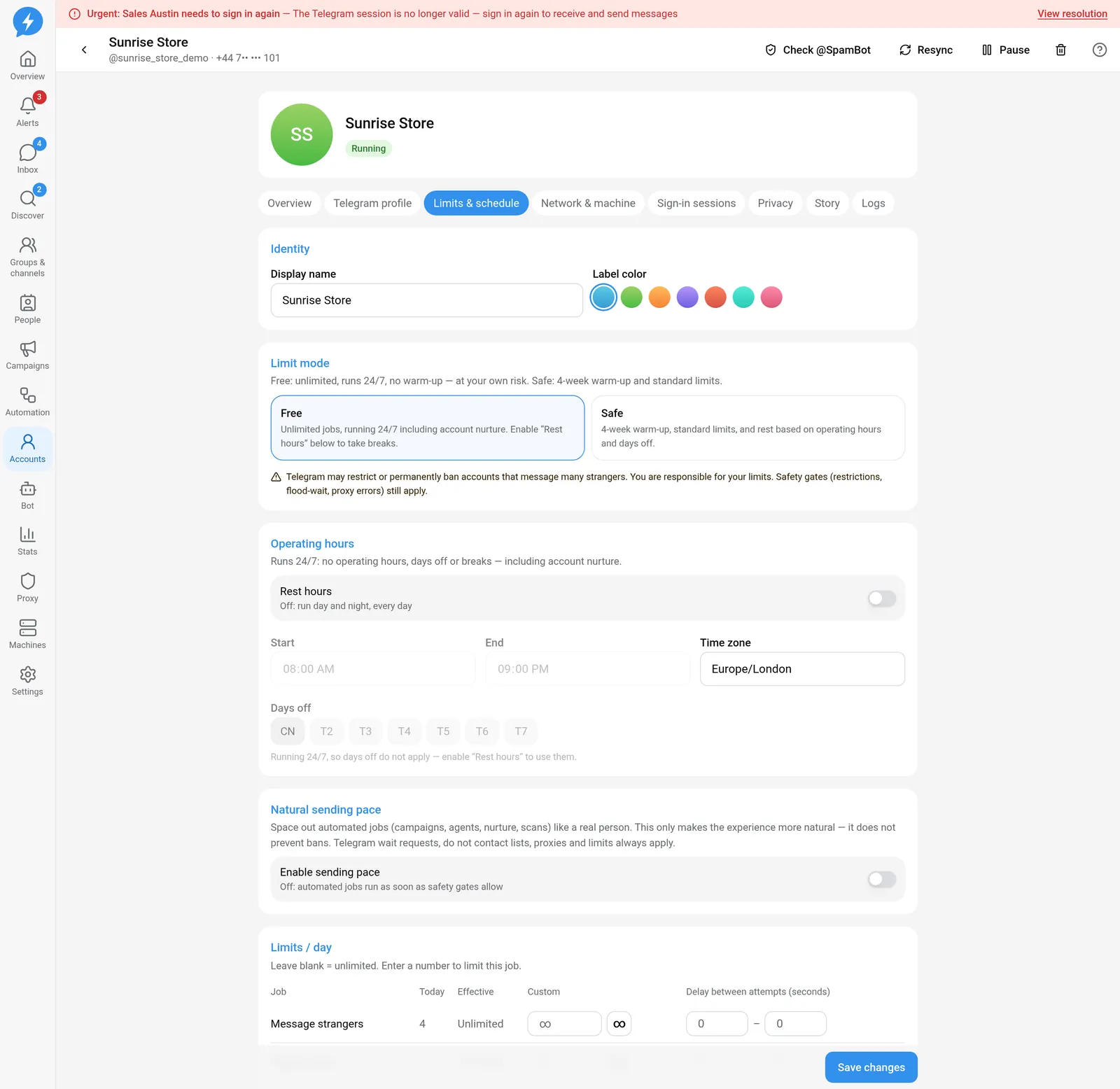
Check the mode before saving Check Rest hours if the account uses Free. When it is off, the account runs 24/7, including nurture jobs. Safe always applies the rest schedule.
Set Start and End.
Select the account's Time zone.
Select Days off.
Decide whether to enable Still reply outside operating hours.
The outside-hours reply option applies to existing chats. It does not skip safety gates or allow new outreach outside the schedule.
- Under Limits / day, find the job category to adjust.
- Enter a Custom value for that category.
- Set Delay between attempts (seconds) if needed.
- Click Save changes.
Understand limit fields
| Value | Meaning |
|---|---|
| Blank in Free | Does not set a daily limit for that job |
| Blank in Safe | Uses the default limit, adjusted for warm-up |
0 |
Blocks that job category |
| A positive number | Sets the daily limit to the number you enter |
Free lets you explicitly select “unlimited” for each category, even when the workspace has a shared configuration. Safe does not apply this option.
Check the Effective column, not just the value you entered. Effective limits also depend on the mode and inherited configuration.
Breaks during the day
When an account follows a schedule, the system automatically places breaks within the day. These differ from the delay between two actions in the same category.
This tab has no fields for manually entering individual breaks. The weekly schedule can show the calculated breaks for the current day.
Change schedules for multiple accounts
- Return to Accounts.
- Open Nurture & schedule.
- Select Schedule.
- Click Apply to all.
- Select the source account in Copy schedule from.
- Click Copy to all.
- Click Save to apply the changes.
This copies operating hours, days off, and Rest hours, not all daily limits. Rest mode lets you adjust multiple Free accounts. Safe always follows the schedule.
Result
New jobs are evaluated against the saved configuration. Outside the schedule or when limits are exhausted, jobs may be held instead of deleted.
Check
Reopen the tab and verify the mode, time zone, and Effective column. After bulk changes, check accounts with different time zones individually.
If something goes wrong
If usage or effective limits have not loaded, click Try again before deciding that an account has enough remaining allowance. If a job is held, check the reason in Logs.
Do it with the API or MCP
Use accounts.update_settings — MCP accounts_update_settings — for account configuration.
Bulk schedules use schedules.save, MCP schedules_save. Actions remain subject to permission checks and risk confirmation where required.