Guides
Add a Telegram account with a QR code
Choose a proxy and machine, then sign in to Telegram by scanning a QR code on your phone.
You add a personal Telegram account to the workspace by scanning a code on your phone. Before signing in, choose a dedicated proxy and the machine that will keep the account connected.
Who can do this
The workspace Owner or Manager can add accounts and sign them in.
Before you start
- A phone signed in to the correct Telegram account.
- An available static proxy that has been checked and is not flagged for IP rotation.
- A connected machine with available capacity that is accepting new accounts.
- The two-factor authentication password, if enabled for the account.
Need infrastructure first? See add proxies, Hetzner machines, or Windows machines.
Where to start
Accounts → Add account.
Steps
Click Add account to open Add Telegram account.
Choose an available proxy for the account.
Click Next.
Choose a running machine with available capacity. The list suggests machines based on the proxy location. You cannot select a full machine.
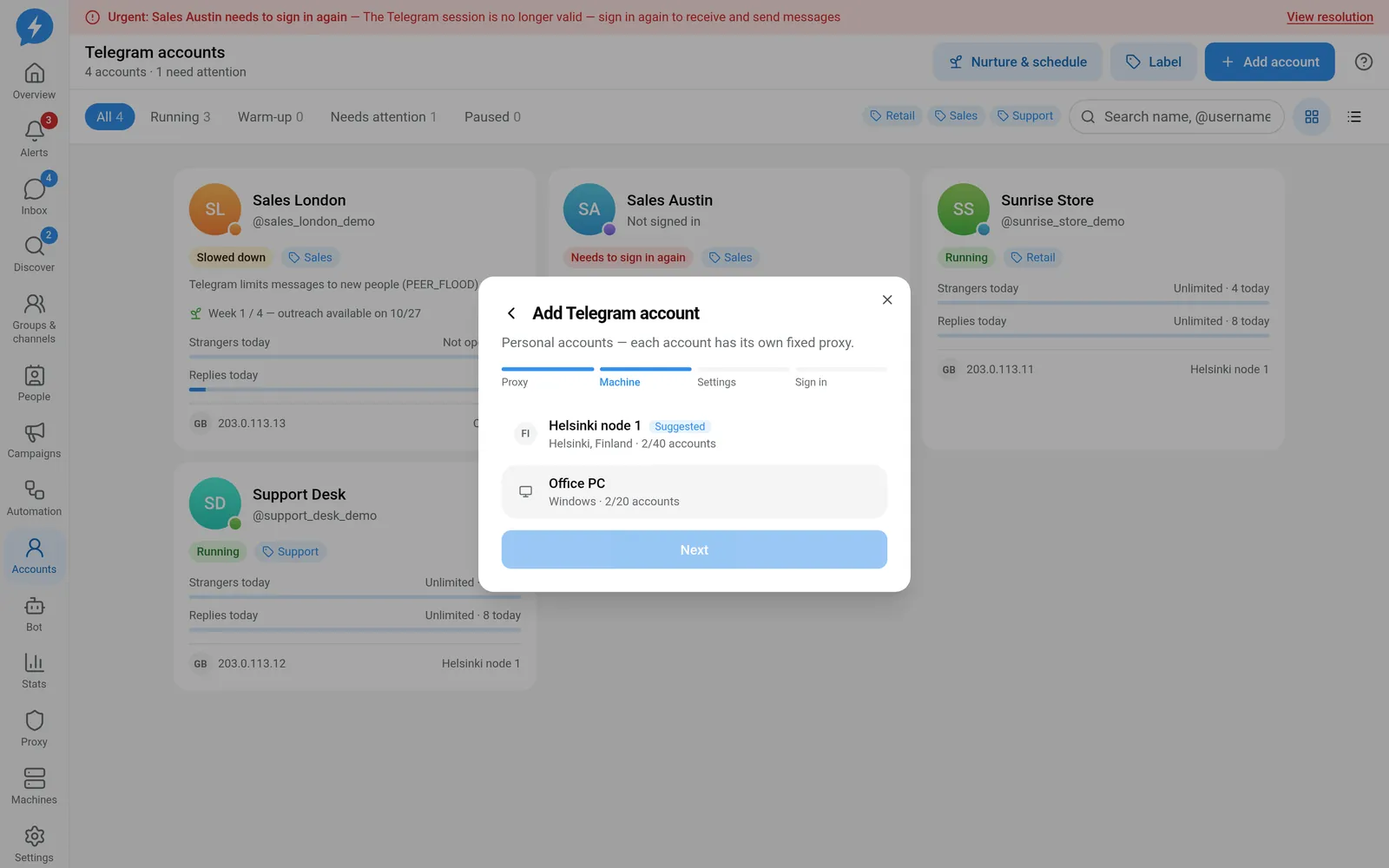
Choose a machine with available capacity Click Next.
Enter a Display name, such as “An Nhien Shop”. You can also set labels and a color to distinguish the account.
Check the Time zone. The suggestion comes from the proxy details, country, or workspace time zone.
Check the remaining settings before creating the account.
Click Create & sign in. The account record is created first, then the sign-in screen opens.
Keep Scan QR code selected and wait for the code to appear.
On your phone, open Telegram and go to Settings → Devices → Link Desktop Device. These are the corresponding labels in Telegram's English interface.
Scan the code displayed in the app.
If This account has a 2FA password appears, enter the 2FA password.
Click Confirm to submit the password.
When you see Signed in successfully, click Done.
Result
The selected machine keeps the account connected through its dedicated proxy. The app starts syncing chats for use in Inbox.
New accounts default to Free, unless a configuration applied after creation changes the mode. A successful sign-in does not necessarily mean the account is warming up. Check the actual mode in Limits & schedule.
Check
- Open the account details and check the sign-in status.
- Open Network & machine to verify the proxy and machine.
- Open Inbox to check that chats have synced.
- Check Limits & schedule before assigning work.
If something goes wrong
The QR code refreshes automatically when it expires. If the entire sign-in attempt times out, click Try again to start a new one.
If the screen is still waiting for the machine to pick up the job, check Machines and the proxy. Closing the dialog before completion requests cancellation of the sign-in attempt, but does not automatically delete the account record already created.
See also Telegram sign-in problems.
Do it with the API or MCP
The corresponding flow uses accounts.create, accounts.login_start, accounts.login_status, and accounts.login_submit.
Corresponding MCP names: accounts_create, accounts_login_start, accounts_login_status, accounts_login_submit. You still scan the code on your phone. Do not put sign-in secrets in conversations with an agent.