Guides
Read logs and rerun failed jobs
Distinguish actions, pending jobs, and technical errors so you can resolve issues without repeating actions whose results are unverified.
Use Logs to see which jobs have run, are waiting, or are held, and why. In particular, Unverified results must be reconciled. Do not treat them as failures to rerun immediately.
Who can do this
Read access depends on the data and accounts assigned to you. Owner and Manager can rerun eligible jobs and read administrative action logs.
Before you start
Record the account, time, and job ID if available. If the incident involves a sent message, also check the chat before deciding to retry.
Where to start
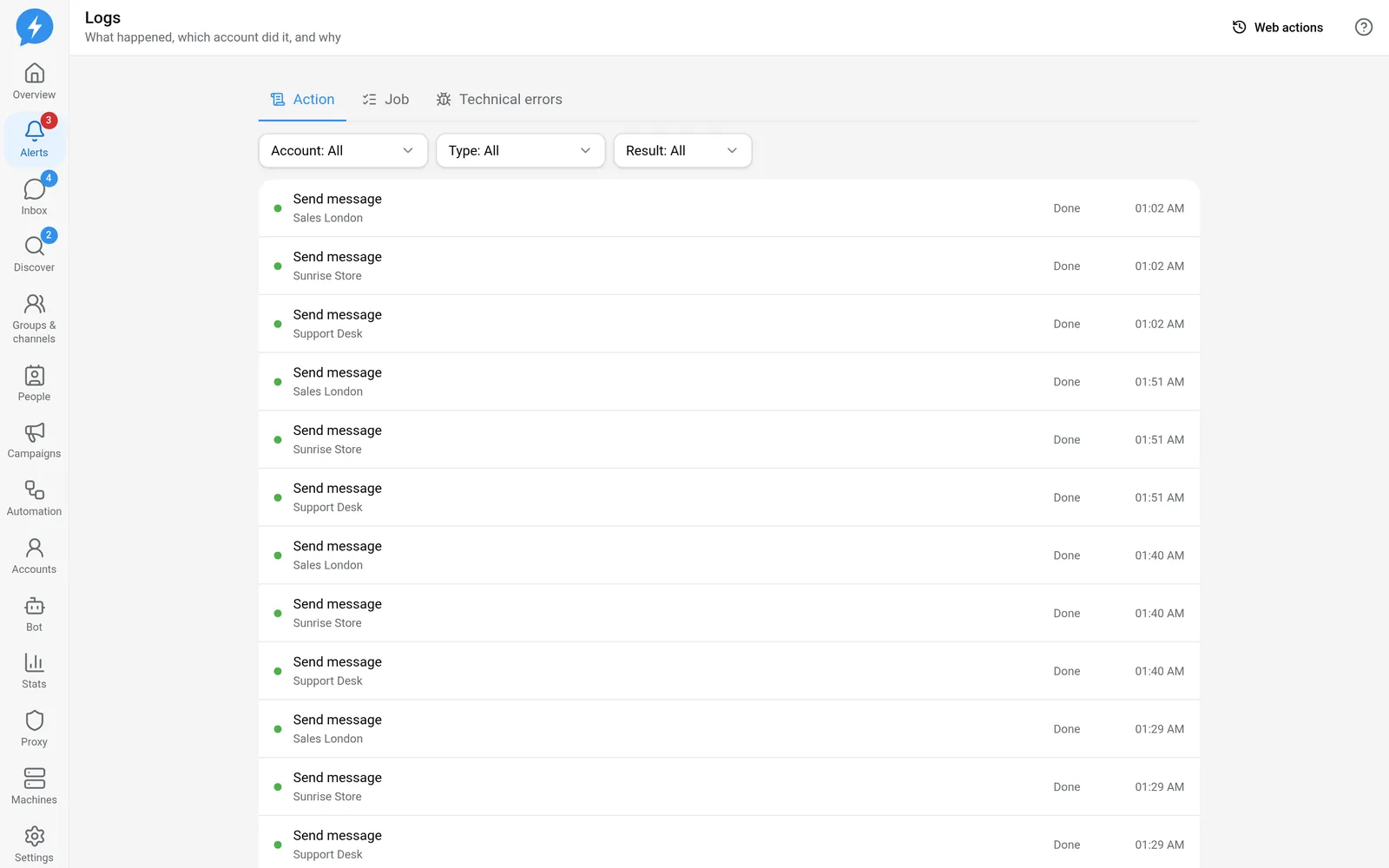
Open Logs through a link in the app, such as in Alerts. It is not a separate item in the left menu.
Steps
- Select the appropriate tab.
| Tab | Answers |
|---|---|
| Actions | What did the account do on Telegram, and how was the result recorded? |
| Jobs | Which jobs are waiting, held, or failed? |
| Technical errors | Which error categories is the system encountering, and how often? |
- Filter by Account.
- Filter by type or result if the current tab provides that filter.
- Open the row you need to inspect.
- Read the reason before fixing or rerunning.
A pending job may simply be waiting for a machine to pick it up. A held job may be outside operating hours, out of allowance, or blocked by a safety condition. Waiting does not mean the job has failed. Fix the actual cause so the job can continue through the safety gate.
Handle unverified results
Unverified — needs reconciliation means the app has not confirmed the final result. Telegram may already have accepted the action.
- Check the chat or target resource.
- Monitor the reconciliation result.
- Look for Confirmed sent (late) if Telegram confirms later.
Do not create a replacement send just because the result is not immediately visible. See also unverified sends.
Rerun failed jobs
Only some failed or expired jobs can be rerun. Message sends, sign-in, campaign/nurture jobs, and unverified jobs have separate flows. Do not replace them with the generic rerun mechanism.
- Find a job with a Run again button.
- Click Run again.
- Read the confirmation and accept the duplication risk if prompted.
- Confirm the rerun.
- Monitor the new job.
The old job is preserved. The app creates a new job linked to it. The new job still passes through current permissions, the safety gate, and limits.
Result
You have a clearer cause or a new eligible job for another attempt. Retried does not mean the new job has completed.
Check
Read both the old and new jobs. For changes made by web users, open Web actions, which leads to Settings → Audit log.
If something goes wrong
A missing rerun button may be intentional, not an interface error. First check the hold reason, your permissions, and the action type.
Do it with the API or MCP
Use jobs.redrive, tool jobs_redrive, for eligible jobs. Jobs with side effects require duplication-risk confirmation according to the schema.
Read web actions with audit.list, tool audit_list. See states to distinguish failed, waiting, and unverified results.