Troubleshooting
Proxy failing, slow, or changing IP
Check proxy connectivity, the observed IP, and how to replace a proxy without putting the account on an unintended network route.
Symptoms
A proxy check fails, the connection is slow, or the observed IP differs from before. The account may stop receiving jobs, fail to sign in, or be unable to connect to Telegram even though the machine is online.
Do not look only at machine status. The machine and proxy are separate layers: the worker may communicate with the app but fail to connect to Telegram through the account's proxy.
Common causes
| Sign | What to check |
|---|---|
| Check fails | Incorrect address, port, proxy type, or credentials, or the provider has stopped the service. |
| Slow | The proxy still works but has a high response time. |
| IP changes | The provider changed the IP, or the proxy is not fixed as expected. |
| Country mismatch | Declared information differs from the observed result; check the proxy source again. |
| Cannot assign | The proxy is already in use, has an unsuitable status, or is marked as rotating IP. |
A slow proxy is not necessarily prohibited: account assignment code accepts ok or slow status if the other conditions are met. However, a proxy marked as rotating IP cannot be assigned.
How to fix
- Open Proxies.
- Select the proxy attached to the account.
- Compare its address, port, and proxy type with the provider's information.
- Recheck credentials without putting the password in notes.
- Run Recheck proxy.
- Read the observed IP and country results.
- If the IP changed unexpectedly, confirm with the provider before continuing.
- Check the account's status after the check.
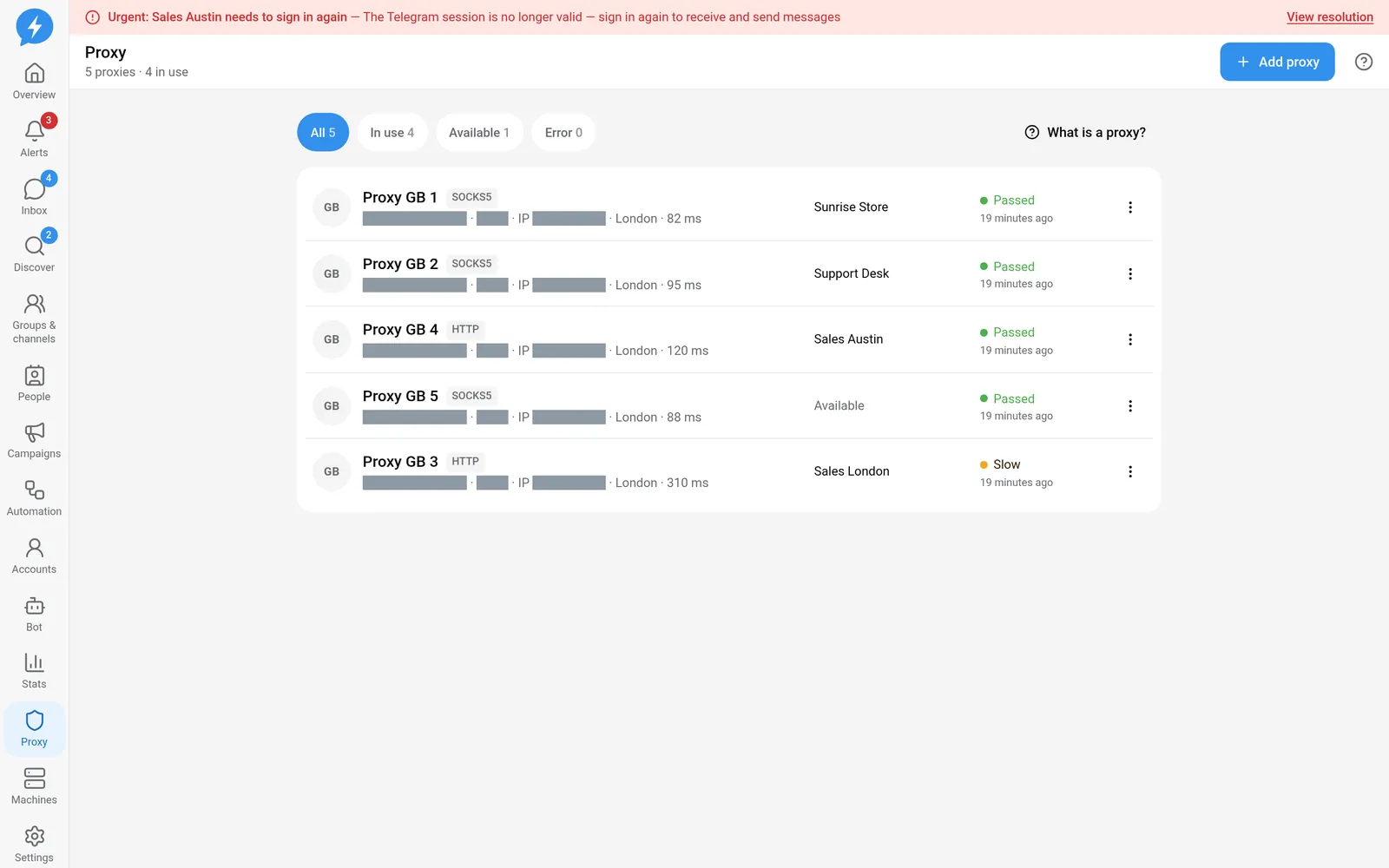
The app checks the network route periodically. A single IP or country change only creates a warning, and the account keeps running. If the IP changes between two consecutive checks, the proxy is treated as rotating IP and the account stops receiving jobs until the IP is stable again. A proxy error does not by itself prove that the Telegram session has expired. Do not sign in again before fixing the connection.
Replace the proxy when needed
- Add a replacement proxy to the pool.
- Check the new proxy.
- Open the account in Accounts.
- Go to Network & machine.
- Select the replacement proxy that is not attached to another account.
- Check the change result and account status.
Each account is attached to exactly one proxy. Do not share one proxy across multiple accounts. Changing proxies may affect the warm-up schedule. Do not keep changing proxies to get around Telegram's wait requirements.
If it still fails
Record the proxy ID, account ID, check time, and error code. State whether the proxy fails completely or is only slow, whether its IP changed, and whether the machine is online.
Only send connection details with the username and password hidden. If you need to share the IP for investigation, use an appropriate private channel. Do not post the full proxy string publicly.
See Proxy concepts and Managing proxies. The corresponding APIs are recheck a proxy, MCP proxies_recheck, and change an account's proxy, MCP accounts_change_proxy.