Guides
Set up account nurture and run schedules
Apply playbooks, manage nurture channels, and check nurture jobs against each account's schedule.
Use playbooks to plan account nurture jobs, then check each day's schedule and results. A playbook is a set of job configurations, not an AI system. It does not guarantee that an account will avoid Telegram restrictions.
Who can do this
Owners or Managers can create, apply, and remove playbooks, manage nurture channels, and save run schedules.
Before you start
- Accounts are signed in, with working machines and proxies.
- A list of channels relevant to your real usage needs.
- Verified run schedules and time zones.
- An understanding of the account's limit mode.
Free does not automatically apply limit-based warm-up. You can still apply a nurture playbook, but the playbook and limit mode are separate configurations.
Where to start
Accounts → Nurture & schedule.
Steps
- Open the playbook library on the page.
- Read 4-week warm-up or Daily maintenance before choosing.
| Job type | How it is performed |
|---|---|
| Read channel | The system can perform it automatically |
| React | The system can perform it automatically |
| Join relevant channels | The system can perform it automatically |
| Complete profile (photo, name, bio) | Reminds you to do it; does not edit the profile automatically |
| Exchange messages with real acquaintances | Reminds you to do it; does not chat automatically |
Click Apply to accounts on the playbook you want.
Select the accounts that will receive the playbook.
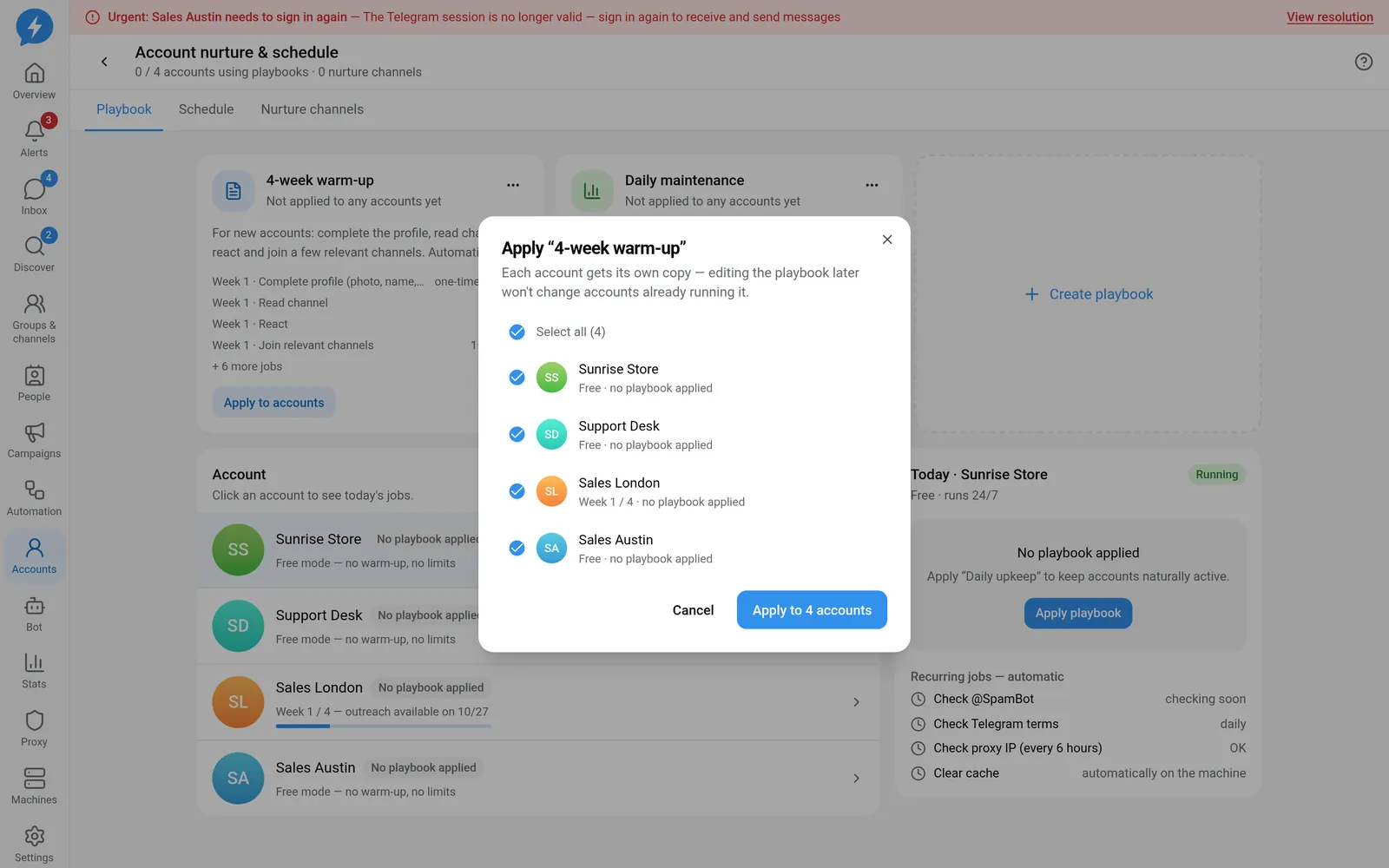
Check the accounts before applying
Confirm application to the selected accounts.
Open Nurture channels to check and add suitable channel sources.
Open Schedule to view operating hours.
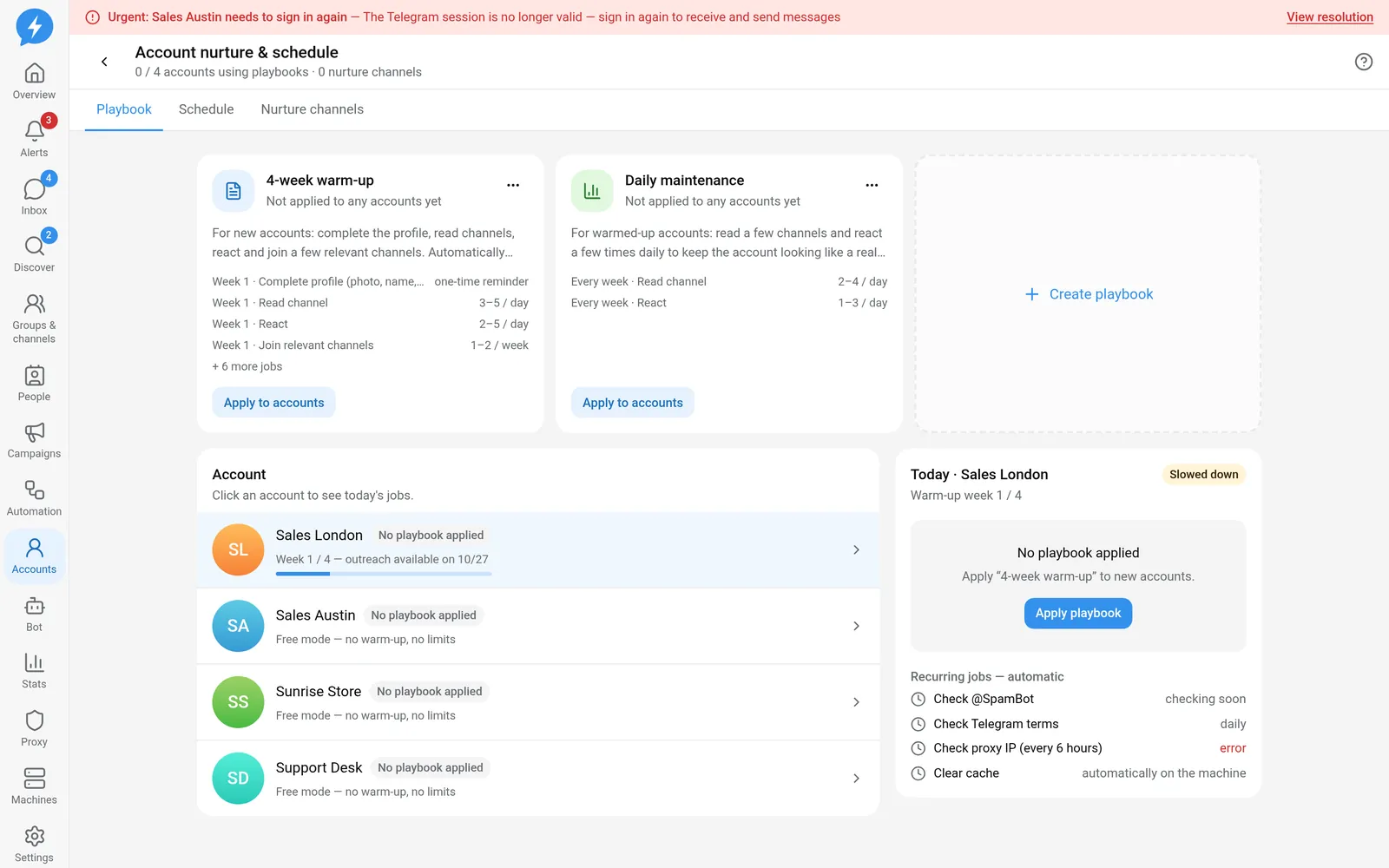
Check each account's schedule Select an account in the list to view Today's nurture jobs.
Each account receives its own copy of the playbook. Later edits to the library playbook do not automatically change configurations already applied to accounts. To give an account the new configuration, apply it again and check the replacement impact.
Free and rest schedules
Free accounts run 24/7 when Rest hours is off, including nurture jobs. An entered schedule may remain saved as a fallback configuration without being applied.
Enable Rest hours if you want a Free account to follow operating hours, days off, and breaks. Safe accounts always follow the schedule.
See limits and schedules to adjust details or copy schedules to multiple accounts.
Stop a playbook
Select Remove playbook, read the confirmation, then proceed. The account stops the playbook's automatic nurture jobs. Warm-up limits and periodic checks are still handled independently.
Result
Nurture jobs are planned according to each account's playbook. Execution still passes through the same safety gate, schedule checks, and limits as other jobs.
Check
Compare completed and planned job counts in Today's nurture jobs. Do not treat a scheduled job as successfully completed.
If something goes wrong
Missing jobs may mean no playbook has been applied, suitable channels are missing, or the scheduled time has not arrived. If jobs are held, check the account status, proxy, machine, and limits before applying again.
Do it with the API or MCP
Use nurture.apply, nurture.today, nurture.remove, and schedules.save.
MCP names: nurture_apply, nurture_today, nurture_remove, schedules_save. An agent can perform only actions allowed by the AI connection.