Guides
Automate with packs, routines, and rules
Apply settings to multiple accounts, schedule jobs, and respond to events with rules you write.
Use Automation to apply recurring settings, schedule work, and handle events with rules. The app has no internal AI: you configure the conditions and actions.
Who can do this
Owner and Manager.
Before you start
Prepare accounts, account labels, and a clear goal. If a rule needs to add tags, change stages, or send a saved reply, create those tags, stages, and replies first.
Where to start
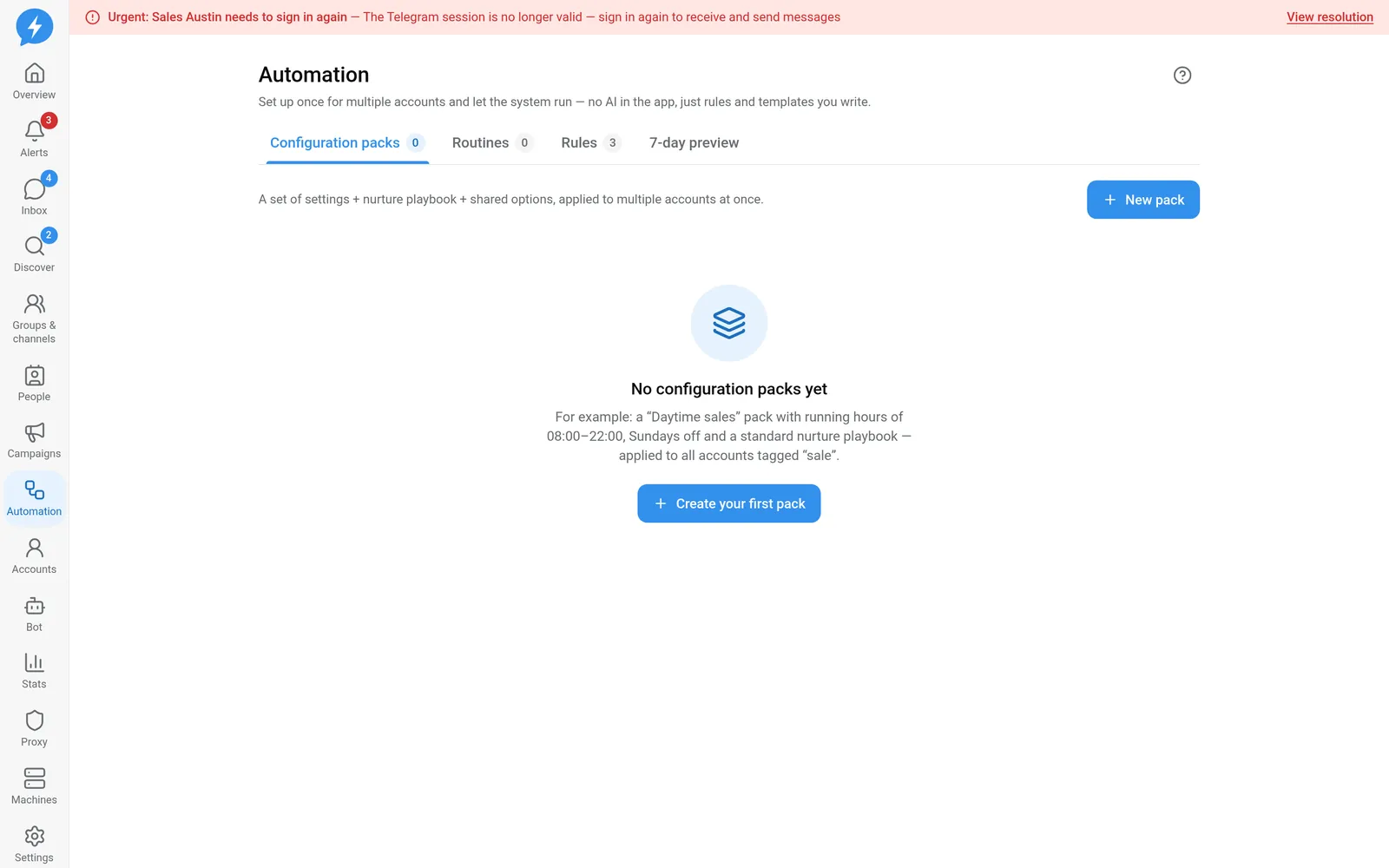
Open Automation. Tabs include Configuration packs, Routines, Rules, and 7-day preview.
Steps
Choose the right type. Configuration packs set shared account settings. Routines create jobs on a schedule. Rules respond to events.
Create a pack in Configuration packs. Select only the settings you want the pack to change; unselected settings keep each account's own values.
Choose the pack contents. A pack can contain the limit mode, running hours, days off, custom limits, a nurturing playbook, and labels.
Apply the pack to selected accounts or by label. For packs automatically applied by label, accounts given that label later also receive the pack. Editing a pack does not automatically update accounts that received an older version; apply it again when needed.
Create a routine. Select target accounts or labels, the run time, and steps. Check the time zone, running hours, and days off before enabling it. Due routines still go through the safety gate.
Create a rule. Name it, select an event under When, then configure If (leave blank to always match): included or excluded keywords, accounts, stages, temperatures, tags, and account-based time windows. Leaving the conditions blank means the selected event always matches.
Add actions under Then, such as adding a tag or changing a stage. If the rule sends a saved reply, the message comes from the conversation's account through the same safety gate; a locked conversation may prevent sending.
Save and enable the rule. Rules handle only new events and do not rescan history. Each event triggers a rule only once.
Open 7-day preview. Select the account scope and review the expected load by day. This is an estimate based on jobs and settings, not a guarantee of sending times.
Result
Settings, routines, or rules run according to your goals. Rules run as soon as events arrive from a machine, so they usually respond within seconds; if no machine is online, the system's background scheduler still runs, but more slowly.
Check
Create a matching event, then inspect the result. For a tagging rule, check the person's profile; for a saved-reply rule, check the message in Inbox. Note: messages between two of your own accounts do not trigger rules — see Internal accounts.
If something goes wrong
Check that the rule is enabled, the event is new, and the conditions match. Old events do not run again just because you edited a rule. If sending is held, read the reason instead of creating another identical rule.
Do it with the API or MCP
Use rules.save, packs.plan, and automation.simulate — MCP rules_save, packs_plan, automation_simulate.