Guides
Manage your groups and channels list
Read the group list from Telegram and choose which groups or channels appear in Inbox.
View groups, supergroups, forums, and channels across your Telegram accounts in one place. The Follow switch determines which groups appear in Inbox; it does not make an account join or leave a group.
Who can do this
Owner, Manager, and Support can view the list according to their account permissions. Owner and Manager can change follow modes. Creating or managing groups also depends on the account's Telegram permissions.
Before you start
At least one account must be fully logged in. The machine must be online to read a fresh list from Telegram.
Where to start
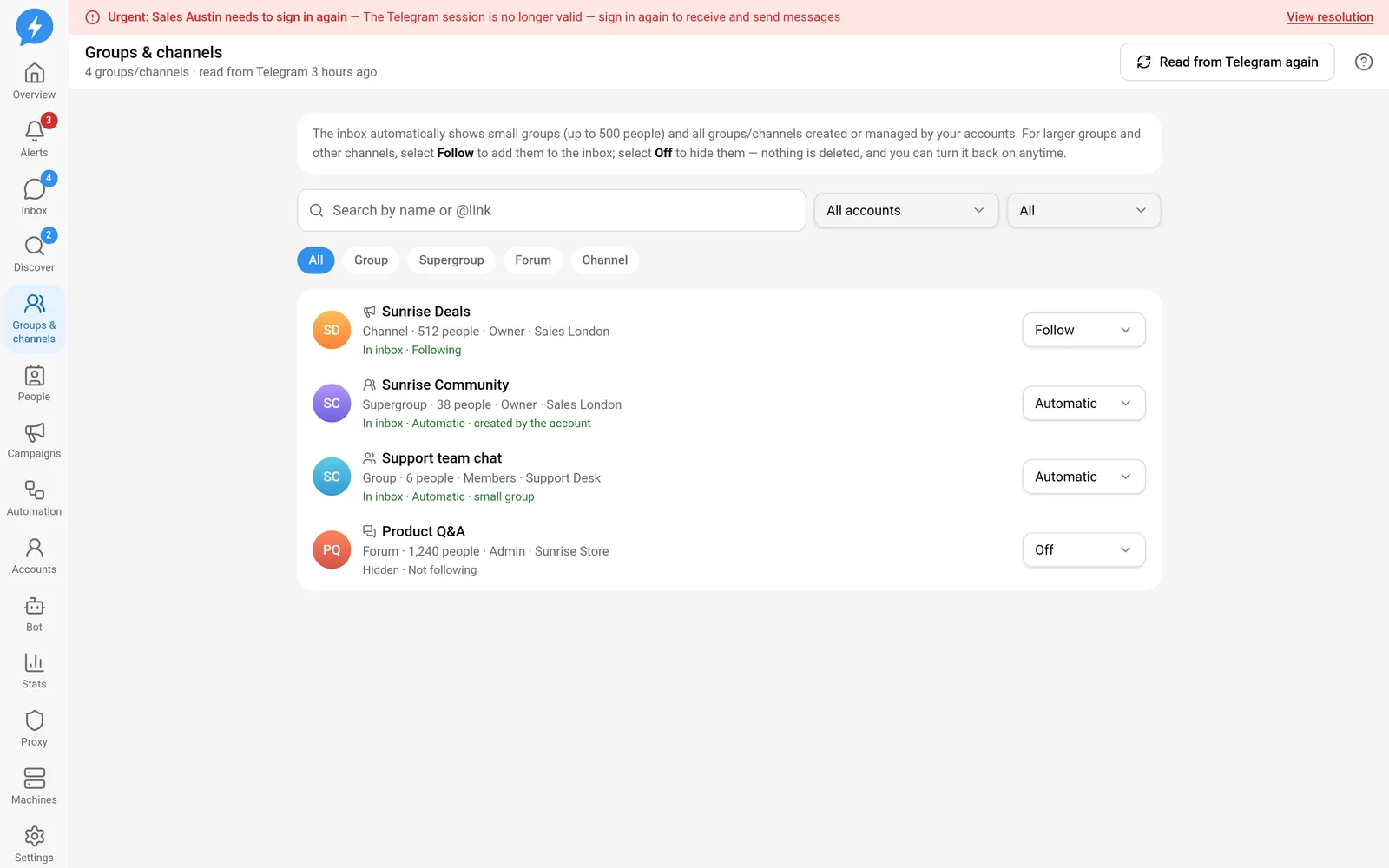
Open Groups & channels in the left menu.
Steps
- Click Read from Telegram again to update the list.
- Select the Account you want to view.
- Select a Type filter: Group, Supergroup, Forum, or Channel.
- Enter a name or @link in Search by name or @link if you need to narrow the list.
- Use the Inbox filter to view In inbox or Hidden.
- Change the follow mode for the group you want to handle.
| Mode | Result |
|---|---|
| Follow | Always include the group/channel in Inbox |
| Automatic | Apply automatic rules based on type, role, and size |
| Off | Hide from Inbox; does not delete data or leave the group |
In Automatic mode, groups/channels created or managed by the account appear in Inbox. Basic groups are also included. Supergroups and forums with a known member count of no more than 500 people count as small groups. Other channels are not automatically included in Inbox.
Create groups, channels, and forums
Creation options are in the new-conversation menu in Inbox; they are not public-group search actions.
- Open the new-conversation menu in Inbox.
- Select the type to create; New supergroup and New channel have separate forms.
- Select the account that will create it.
- Enter a name.
- Enter a description if needed.
- Confirm creation.
To use topics, open the management section of a group that supports forums, enable forum mode, then create a topic. Use only actions shown when the account has the appropriate permissions. Topic pinning is part of group administration, not the Follow switch.
Result
The list reflects the Telegram groups/channels your accounts belong to, along with your choices about which appear in Inbox.
Check
Open Inbox after enabling following. If you select Off, check that the group is hidden but remains in Groups & channels.
If something goes wrong
A message saying the machine is still reading does not mean the action failed; the list may update automatically later. If a group is missing, clear filters first, then check the account and machine.
See group administration if you need to change permissions, invite links, or forum settings.
Do it with the API or MCP
Use groups.chats, groups.refresh_chats, groups.set_tracked, and groups.create_channel.
Corresponding tool names: groups_chats, groups_refresh_chats, groups_set_tracked, groups_create_channel. Read topics with groups.topics, tool groups_topics.