Guides
Create and run a campaign
Select people, sending accounts, and a sequence, then send a test before starting.
Create a campaign by combining an audience, sending accounts, and a sequence. Before starting, check the content and send a test to someone who has agreed to receive test messages.
Who can do this
Owner and Manager.
Before you start
Prepare people from appropriate sources, active accounts, and content written by your team. Read Do not contact and Limits and warm-up before deciding on the scale.
Where to start
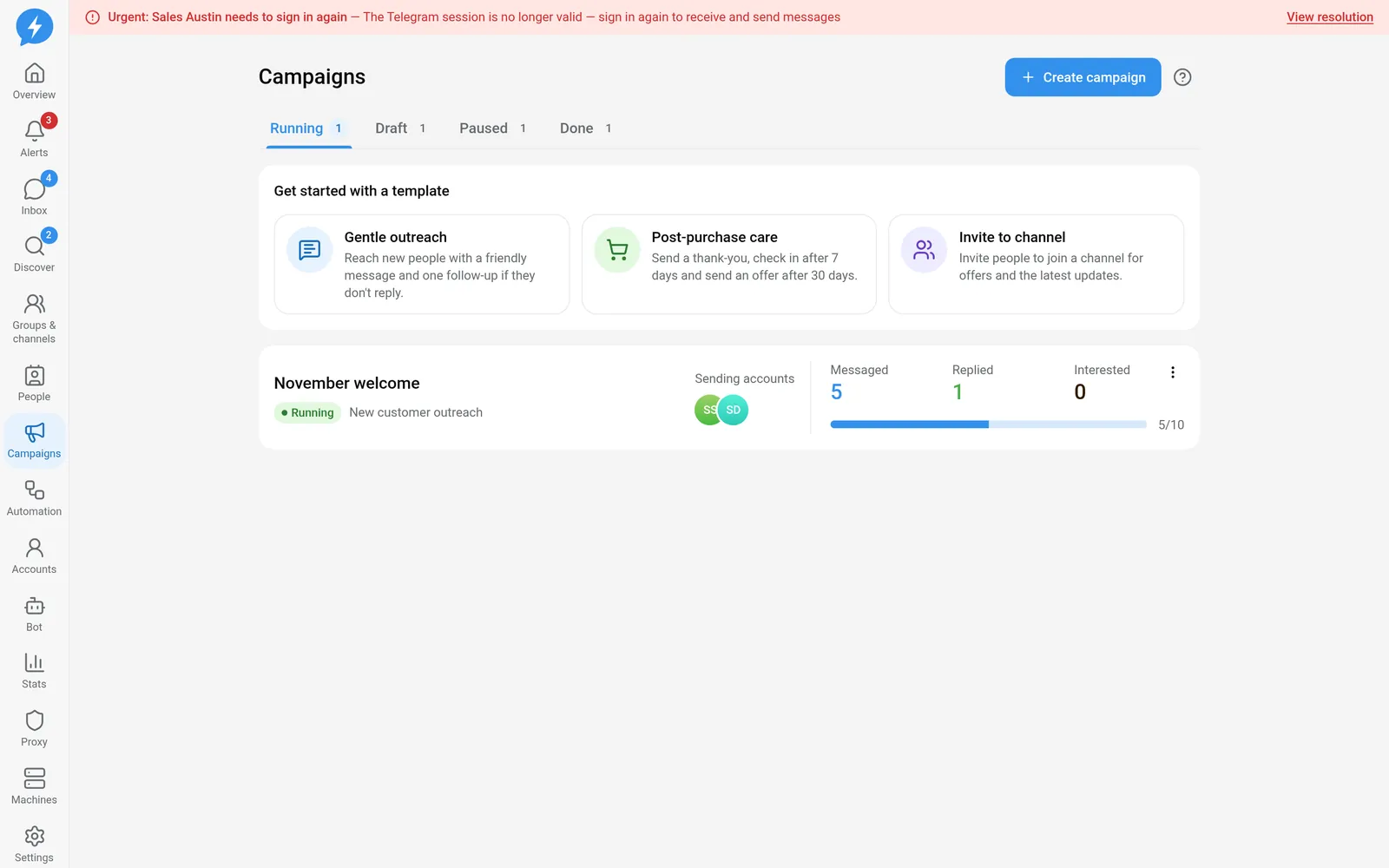
Open Campaigns, then select Create campaign.
Steps
Name the campaign and choose a goal: reach people you have never spoken to, or follow up with people who have messaged before.
Choose a starting point. Under Start from, select a preset or Empty sequence, then click Create and compose sequence. Presets are only starting frameworks; review every step.
Select the audience. Use people from People, a list, selected people, or group scan results. A group source is a list of people found — the campaign does not send messages to the group.
Add filters by stage or tag, then review the audience preview. The actual recipient count may be lower than the number of profiles in the source because excluded or ineligible people are skipped.
Select sending accounts. Check each account's login status and ability to send.
Build the sequence using Add step:
Step type Purpose sendSend a text message send_fileSend a file; this step is skipped for strangers waitWait for a period of time branchBranch on a condition, such as whether the person has replied reactReact to the person's latest message handoffAssign the conversation to a person, change the stage, or add a tag Waiting for a reply differs from waiting for a fixed duration — read each step's description.
Write content and variants. Use
{ten},{nhom},{chu_de}, and{tai_khoan}to fill in context; use{Hi|Hello}to randomly select wording.{{name|you}}supplies fallback text when the name is missing. Unmatched braces make the content invalid; unknown variables trigger warnings.Variants are separate versions of content within the same step; spintax provides choices within one version. Choices stay consistent for each recipient and do not change on retries.
Test the current version. Select an account and a private chat to receive the test, then click Send test. Editing the content afterward invalidates the previous test — send another test.
Start the campaign once the test passes. Every message still goes through the safety gate: running hours, do-not-contact rules, limits, account status, and connectivity can hold or reject jobs.
Result
The campaign runs using its published version. Pause temporarily stops progress; messages already sent cannot be recalled.
Check
See Campaign results. Editing a running campaign creates a draft; when you publish it, people already partway through the sequence continue on their own version.
If something goes wrong
Check why recipients are held or skipped in the recipients tab. Do not raise limits before understanding the cause.
Do it with the API or MCP
Use campaigns.create, campaigns.save_graph, and campaigns.test — MCP campaigns_create, campaigns_save_graph, campaigns_test. Agents should see the prepare a campaign playbook.