Integrations
Send events to Google Sheets
Use the in-app Google Apps Script guide to turn webhook events into spreadsheet rows.
You can send events to Google Sheets using a webhook and Google Apps Script, following the in-app guide. This is not a two-way Google sync connection or a direct export into a linked spreadsheet.
Who can do this
You need integration management permissions in Telegram-Auto and permission to edit the spreadsheet and deploy Apps Script on the Google side.
An AI assistant can help configure a webhook within its granted scope. Connecting it to Telegram-Auto does not automatically give it Google permissions.
Before you start
- A test spreadsheet with no real data.
- Permission to deploy an Apps Script web app.
- A separate secret string for the receiver URL.
- A decision on which events and data fields may be sent to Google.
If you need full signature verification, use an intermediary service following the webhook receiver guide, then have that service write to Sheets.
Where to start
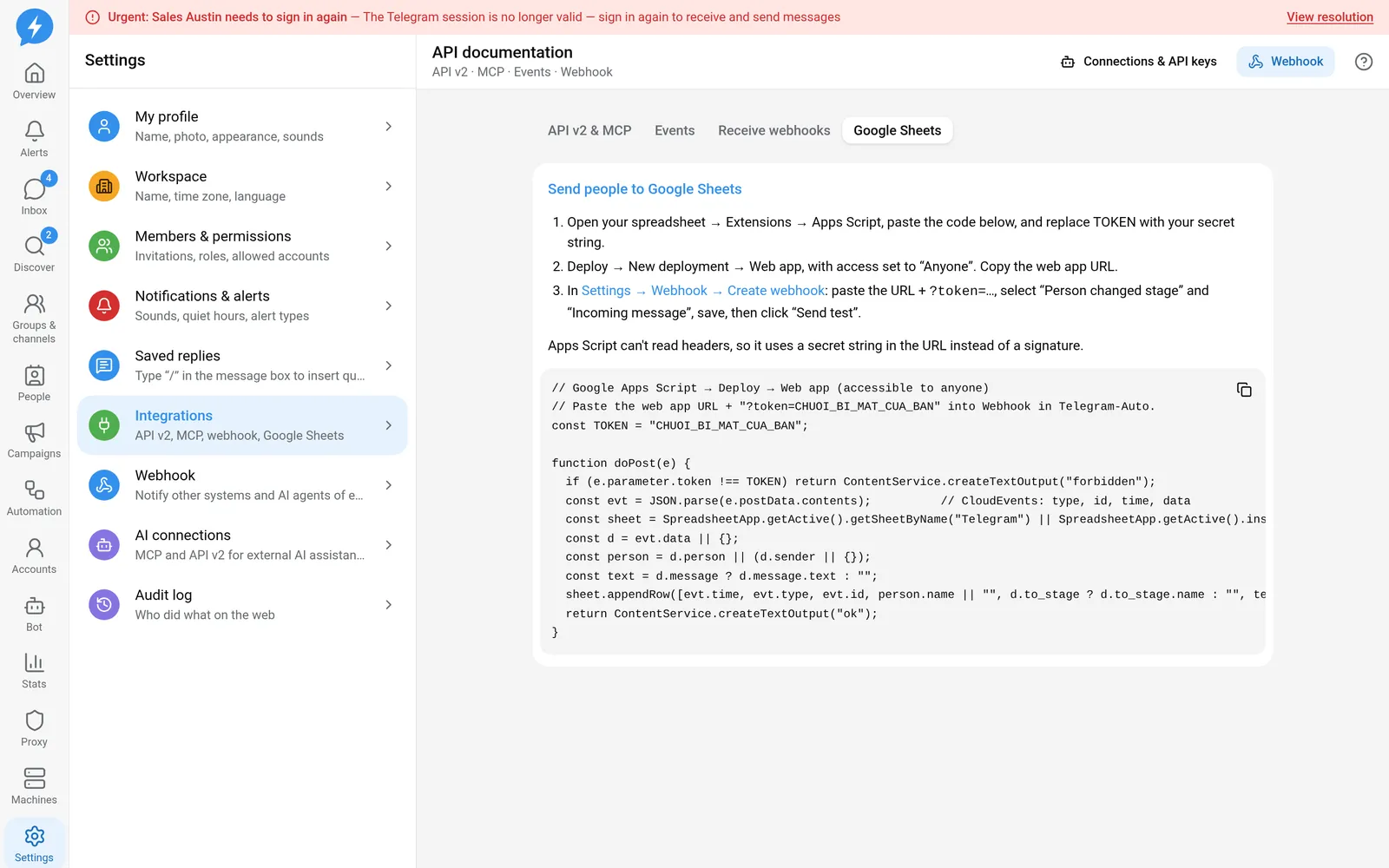
Open Settings → Integrations and choose Send people to Google Sheets. The app takes you to API documentation, on the Google Sheets tab.
Steps
- Open the test spreadsheet.
- Open the spreadsheet's Apps Script editor.
- Copy the code from the Google Sheets tab.
- Replace the sample secret with your own.
- Deploy the script as a web app that can receive external requests.
- Copy the deployment URL.
- Open Settings → Webhook.
- Create a webhook pointing to the deployment URL with the secret parameter.
- Choose the events you need.
- Open the webhook and choose Send test.
- Check for a new row in the spreadsheet.
Do not put a URL containing a secret in screenshots, public logs or messages. When sharing configuration for support, hide the query parameters too.
Result
The sample creates or uses a sheet named Telegram, then appends rows from CloudEvents events. Sample columns include time, event type, event ID, person's name, destination stage and message content when available.
The data received depends on the event, content mode and webhook owner's permissions. An empty cell does not by itself prove that the webhook failed.
Check
Compare both the webhook's Deliveries tab and the spreadsheet. HTTP success only means the receiver returned a successful response. You still need to check that the row and its contents were written correctly.
The sample recipe is not a complete sync system. Before using it with real data, add event ID deduplication and spreadsheet write error handling.
If something goes wrong
- No row: check the deployment URL, access permissions and delivery.
- Duplicate rows: add deduplication, especially for retries or replay.
- Success response but no write: check the script. The sample returns the text
forbiddenwhen the token is wrong. Do not use response text as proof of successful authentication. - Redirect error: do not assume the sender will follow redirects from the deployment destination. Check the actual delivery error.
There is no basis for describing this feature as importing people through a public Google Sheet link.
Do it with the API or MCP
Create a webhook with webhooks.create, test it with webhooks.test, or use MCP webhooks_create and webhooks_test when available in the profile.
people.export is a separate operation for exporting people data. It does not write directly to Google Sheets.