Troubleshooting
Cannot sign in to Telegram
Check the machine, proxy, sign-in code, and two-step verification password when an account has not completed sign-in.
Symptoms
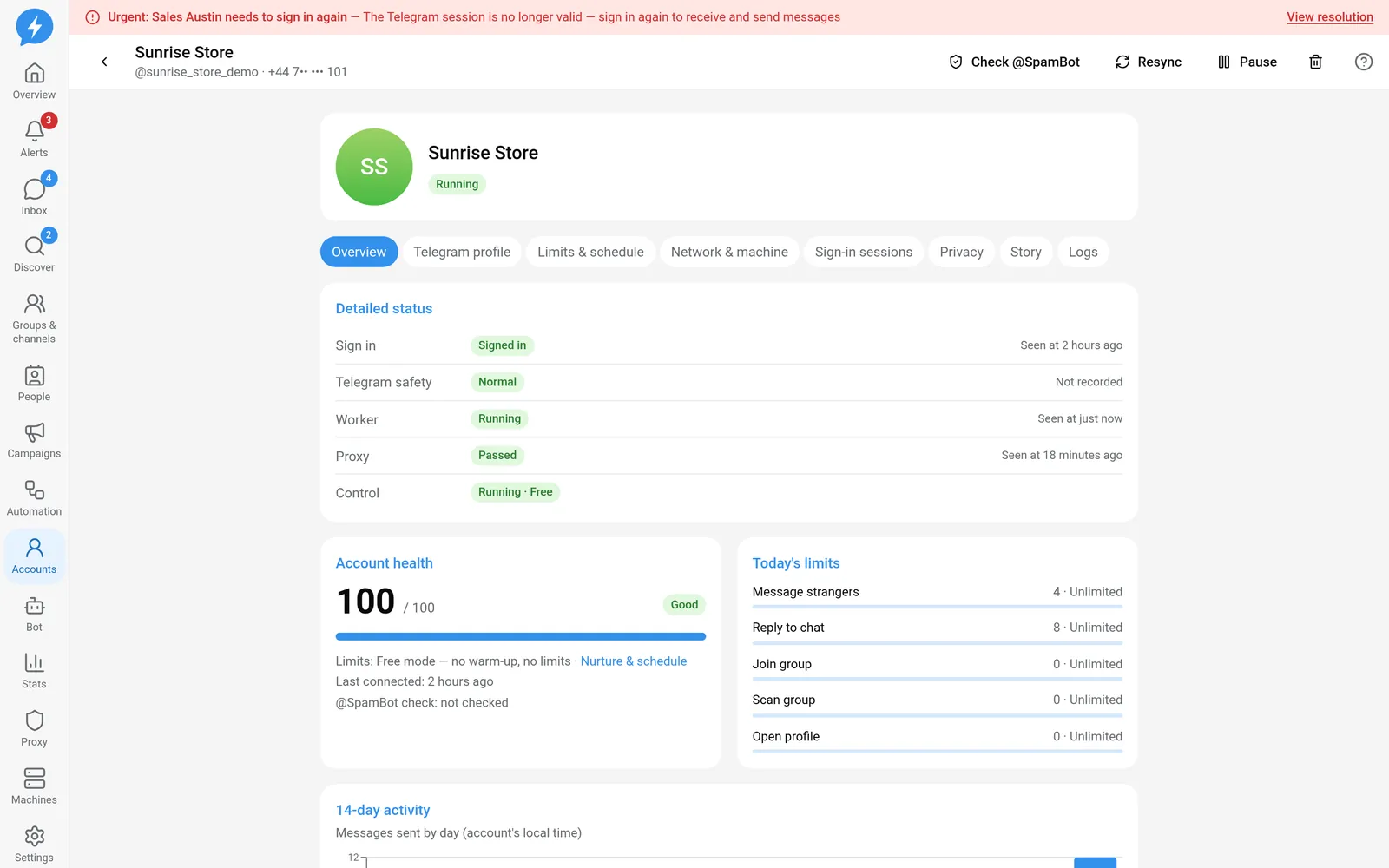
You see Preparing sign-in… but no QR code appears, a code has been sent but has not arrived, or the two-step verification password is rejected. An account that previously worked may also change to Needs to sign in again.
Before retrying, distinguish “the machine has not picked up the job” from “Telegram received the request but needs more information.” Starting sign-in repeatedly does not fix an offline machine or a faulty proxy.
Common causes
| Sign | What to check |
|---|---|
| No QR code; the job is still queued | The worker has not picked up the job, or the machine is offline or not ready. |
| Connecting through the proxy takes too long | The proxy or network connection has a problem. |
| The QR code has expired | Start a new sign-in attempt with Try again. |
| No code arrives | The code may arrive in the Telegram app rather than by SMS. |
| Incorrect two-step verification password | This is different from the sign-in code and your Telegram-Auto web sign-in password. |
| Needs to sign in again | The Telegram session is no longer usable, for example because it was revoked. |
When a sign-in job stays queued for more than 30 seconds, the screen warns that the machine has not picked it up. This is a reason to check the machine, not a conclusion that Telegram has banned the account.
How to fix
- Open the account in Accounts.
- Check the assigned machine in Network & machine.
- Open Machines to check that the machine is connected.
- Check the account's proxy in Proxies.
- Fix machine or proxy errors before starting a new sign-in attempt.
- If using Scan QR code, open Telegram on the account owner's phone and use its device-linking feature to scan a code that is still valid.
- If using Phone number, check the Telegram app on a signed-in device before waiting for an SMS.
- Enter the latest code into the current sign-in attempt.
- If Telegram asks, enter the account's 2FA password.
- If the sign-in attempt has timed out, select Try again.
- If Telegram requires a wait, respect it instead of repeatedly requesting codes.
A network error, proxy error, or timeout does not by itself prove that the session has expired. Sign in again only when the actual status and error require it.
If it still fails
Record the account ID, machine ID, sign-in job ID, and when the error appeared. State whether you are using QR or a phone number, whether the job is queued or running, and whether the proxy check succeeded.
Send screenshots with phone numbers and secret areas hidden. Do not send QR codes, sign-in codes, two-step verification passwords, or session copies.
Read about offline machines and proxy errors to resolve the infrastructure layer first. An agent should only monitor through sign-in status, MCP accounts_login_status; it must not guess codes or passwords.